
The best 5-inch LCD screen depends on its connection type, resolution, and touch technology. The Hosyond HDMI model is a strong fit for buyers who want an IPS panel and a familiar HDMI connection, while its MIPI DSI model suits compatible Raspberry Pi setups. For more screen detail, consider the ELECROW 1024×600 display. The other ELECROW options offer capacitive or resistive touch, depending on the interaction style you need.
| Display | Best For | Key Detail |
|---|---|---|
| Hosyond HDMI IPS | HDMI-connected projects | 800×480, five-point capacitive touch |
| Hosyond MIPI DSI | Compatible Raspberry Pi builds | 800×480, capacitive touch |
| ELECROW TN | Capacitive touch on a compact display | 800×480, five-point touch |
| ELECROW 1024×600 | Buyers prioritizing resolution | 1024×600, acrylic stand included |
| ELECROW Resistive | Projects needing resistive touch | 800×480, broad listed device compatibility |
Hosyond 5-Inch HDMI IPS Touchscreen
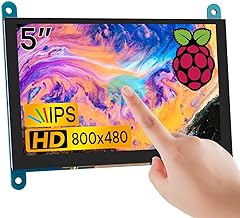
This Hosyond display is best for buyers who want a compact screen with an HDMI connection and capacitive touch. Its listed specifications include a 5-inch IPS LCD panel with 800×480 resolution, a five-point capacitive touchscreen, and a built-in OSD menu.
The product listing names Raspberry Pi 5, 4, and 3, as well as BB Black and Windows 10, 8, and 7. Those stated compatibility options make it a flexible candidate for small computer projects where HDMI is the intended display connection. The IPS panel and OSD menu are useful distinguishing details when comparing the listed 800×480 screens.
- Best for: HDMI-based Raspberry Pi or PC projects that need capacitive touch.
- Why it stands out: IPS display, five-point touch, and built-in OSD are all specified.
- Consider: The 800×480 resolution is lower than the 1024×600 option in this roundup.
Choose this model if the HDMI interface and IPS panel match your setup. Check the connection and operating-system requirements for your specific device before purchase.
Hosyond 5-Inch MIPI DSI Touchscreen

This Hosyond screen is best for buyers building around a compatible Raspberry Pi and looking specifically for a MIPI DSI interface. The listing describes a 5-inch IPS touchscreen with 800×480 resolution, capacitive touch, and a driver-free interface.
The listed compatible devices include Raspberry Pi 5, 4, and 3. MIPI DSI is the defining selection point here: it is a different connection approach from the HDMI display in this roundup. A buyer should match the screen interface to the board and project rather than choosing by size alone.
- Best for: Raspberry Pi projects that use the listed MIPI DSI interface.
- Why it stands out: It combines an IPS panel, capacitive touch, and a driver-free interface in a 5-inch format.
- Consider: The listing names Raspberry Pi models rather than broad PC or laptop compatibility.
Choose this model if your project calls for MIPI DSI. Avoid assuming it is interchangeable with an HDMI monitor; confirm that your target hardware supports the specified interface.
ELECROW 5-Inch TN Capacitive Monitor

This ELECROW model is best for buyers who want a compact 800×480 screen with five-point capacitive touch. The listing identifies the panel as TN and describes the display as driver-free. It lists Raspberry Pi 5, 4, 4B, 3B+, 3B, and B+, along with PC and laptop use.
Its clearest advantage in this group is the combination of a stated five-point touch function and a broad list of Raspberry Pi board versions. The TN panel type is also important to compare with the IPS options: buyers should select based on their panel preference and project needs, rather than treating the screen technologies as identical.
- Best for: Buyers who want five-point capacitive input and one of the listed Raspberry Pi models.
- Why it stands out: Its product description explicitly names PC and laptop use in addition to Raspberry Pi compatibility.
- Consider: This is a TN display, not an IPS model, and its listed resolution is 800×480.
Choose it when its stated device list and capacitive touch suit the build. Check your intended connection and computer setup, since the provided product details do not specify every connection requirement.
ELECROW 5-Inch 1024×600 Touch Monitor

This ELECROW is best for buyers who prioritize the higher listed resolution among these five options. It is described as a 5-inch touchscreen monitor with 1024×600 resolution and an acrylic stand. The listing names Raspberry Pi 5, 4, and 3, Banana Pi, and Jetson Nano, and describes the setup as plug and play.
Compared with the 800×480 screens in this selection, 1024×600 provides more listed pixels on a similarly sized display. That can make it the more relevant option for projects where screen detail matters, although actual usability also depends on the content and software being displayed.
- Best for: Buyers seeking a 5-inch display with 1024×600 resolution and a stand included.
- Why it stands out: It has the highest stated resolution in this product list and names several small-board platforms.
- Consider: The supplied description does not specify the touch technology or panel type.
Choose this model if the resolution and listed device compatibility fit your project. Verify the connection requirements and touch details in the full listing before deciding.
ELECROW 5-Inch Resistive Touchscreen

This ELECROW display is best for buyers whose project specifically calls for resistive touch. It has a listed 800×480 resolution, and its compatibility description names Raspberry Pi 5, 4, 3, and 2B, Raspberry Pi Zero, Banana Pi, Jetson Nano, and Windows 11, 10, 8, and 7. The listing describes it as plug and play.
Its resistive input separates it from the capacitive screens above. That distinction matters because touch technology is a core part of the user interface, not just a minor specification. The broad device list may help buyers comparing options for different small-board computers or Windows systems.
- Best for: Builds that require a resistive touchscreen and one of the listed devices.
- Why it stands out: It combines 800×480 resolution with a particularly broad stated compatibility list.
- Consider: Choose another option if capacitive touch is a specific requirement; this listing identifies the panel as resistive.
Confirm the connection and setup details for your exact device before buying. The product description provides compatibility claims, but does not give every configuration detail.
Buying Guide: How To Choose A 5-Inch LCD Screen
Which display connection does your project need?
Start with the interface, because a screen must connect appropriately to the computer or board. One product here explicitly identifies HDMI, while another specifies MIPI DSI. Do not assume that a 5-inch display will work with every computer simply because the size is suitable. Check the target device’s available ports and the full product listing for connection instructions.
For Raspberry Pi builds, match the display’s stated compatibility to the board model. The product descriptions name different sets of Raspberry Pi versions, so compare those lists directly. If the screen will be used with a PC, laptop, Banana Pi, Jetson Nano, or another device, look for that platform in the specific listing rather than extrapolating from another model.
Is 800×480 enough, or should you choose 1024×600?
Four displays in this selection list 800×480 resolution, while one lists 1024×600. The latter offers a higher stated pixel count, which may suit users who want more detail on a small screen. Resolution alone does not establish how every interface will appear; consider the software, text size, and content you intend to display.
Also check that your project can use the selected resolution. If a particular board or application has display settings that matter to your build, verify those before purchase. A higher resolution is not automatically the best choice when a lower-resolution display better fits the project requirements.
Should you choose capacitive or resistive touch?
Capacitive and resistive touch are different input types. The Hosyond models and two ELECROW listings specify capacitive touch; the remaining ELECROW model specifies resistive touch. One listing also identifies five-point capacitive touch. Choose based on the touch method your project requires, and do not treat the two technologies as interchangeable.
If touch is not needed, confirm whether the display’s touch features are useful to your setup. If it is needed, pay attention to the exact feature wording: “capacitive,” “resistive,” and “five-point” describe different selection details.
How do IPS and TN panel descriptions compare?
The product data identifies two Hosyond models as IPS and one ELECROW model as TN. The 1024×600 ELECROW listing does not state its panel type in the supplied description. These labels can help narrow a shortlist, but the available specifications do not provide a side-by-side measurement of viewing angles, brightness, or color performance. Avoid assuming unlisted performance characteristics.
What else should you verify before ordering?
- Board or computer match: Check the exact model names in the compatibility list.
- Interface: Confirm whether your build calls for HDMI, MIPI DSI, or another specified connection.
- Resolution: Compare 800×480 and 1024×600 against your project’s display needs.
- Touch type: Confirm capacitive or resistive input, and whether the listed number of touch points matters.
- Included items: The 1024×600 model description specifically mentions an acrylic stand. Check each full listing for other included components.
- Setup claims: “Driver-free” and “plug and play” appear in some descriptions, but verify the details for your operating system and hardware.
Frequently Asked Questions
What is the resolution of a typical 5-inch LCD screen in this selection?
Most of the listed displays are 800×480. One ELECROW model is listed at 1024×600, so check the resolution before choosing.
Which option has the highest listed resolution?
The ELECROW 5-inch touchscreen monitor with an acrylic stand is listed at 1024×600, the highest resolution among these five products.
Are all five displays HDMI monitors?
No. One Hosyond model explicitly specifies HDMI, while another specifies MIPI DSI. The supplied descriptions do not identify every product’s connection type, so check each full listing.
Which display uses resistive touch?
The ELECROW 5-inch 800×480 display for Raspberry Pi is identified as a resistive touchscreen. The other listed touch models specify capacitive touch.
Do these screens work with every Raspberry Pi?
No universal compatibility is stated. Each product lists particular Raspberry Pi models, and those lists differ. Match the screen’s stated compatibility and connection requirements to your board.
What does “driver-free” or “plug and play” mean for these listings?
Those phrases are used in some product descriptions, but they do not establish compatibility with every device or operating system. Confirm the setup instructions for your exact hardware and software before purchasing.