
The easiest way to move cassette audio onto a CD is to convert the tape to MP3 files first, then use a computer with a CD burner to create an audio disc. The products below capture cassette audio in digital formats; none is described as a standalone CD burner. The ClearClick is best for computer-free MP3 capture with automatic track splitting, while the DIGITNOW and Reshow connect to a computer by USB. The KLIM K7 and SEMIER can save recordings to an SD card.
| Product | Best for | Capture method |
|---|---|---|
| ClearClick Cassette to USB | Saving separate MP3 tracks without a computer | USB flash drive |
| DIGITNOW USB Cassette Converter | Computer-based conversion and CD preparation | USB and software |
| KLIM K7 Cassette Player | Portable conversion to an included SD card | SD card |
| Reshow Cassette Tape Player | USB conversion plus ordinary tape playback | USB and computer |
| SEMIER Cassette Converter | SD-card or computer conversion | SD card or USB |
ClearClick Cassette to USB

The ClearClick converts audio cassettes to MP3 files saved on a USB flash drive. Its listed package includes a 16 GB USB drive, and the product features automatic track splitting, which can create separate MP3 files rather than one continuous recording. The maker describes setup as requiring no computer, software, or drivers.
Best for: People who want to capture tapes directly to USB and prefer the converter to split tracks automatically. It is a practical choice when the goal is to collect MP3 files before making a CD on a separate computer.
Limitation: The product information describes MP3 capture to USB, not direct CD burning. You will still need a computer and CD burner to create a physical audio CD.
DIGITNOW USB Cassette Converter

The DIGITNOW is a portable cassette player that sends tape audio to a computer over USB for conversion to MP3. Its feature list references Audacity software and says no installation or drivers are required. Converted files can be played on compatible digital music devices or used as source files for burning a CD. It also has a 3.5 mm headphone connection and includes earphones.
Best for: Buyers who want to use a laptop or desktop as part of the transfer process and may want to review or organize their audio files before burning a disc. Computer-based conversion can also suit users who want to manage the digital files themselves.
Limitation: This is not a direct cassette-to-CD machine. The product relies on a computer for the USB conversion workflow, and burning a disc requires a computer with suitable CD-burning capability.
KLIM K7 Cassette Player

The KLIM K7 converts cassette audio to MP3 and stores the files on an included 16 GB SD card. The product listing says it needs no additional device or app for that conversion process and includes an SD card reader. It can also play music from an SD card, record audio through its built-in microphone, and play sound through an integrated speaker or the 3.5 mm earphone jack.
Best for: Buyers who want to digitize tapes to an SD card without making a computer the first step. Its portable design and included earphones also make it useful for listening to tapes on the move.
Limitation: It records to the SD card, not onto cassette tapes, and the listed features do not describe direct CD burning. A separate computer and CD burner are needed to turn the MP3 files into a disc.
Reshow Cassette Tape Player

The Reshow transfers cassette audio to MP3 through a USB cable and is described as compatible with laptops and personal computers. It also functions as a standard cassette player. For listening, its 3.5 mm connection can be used with standard headphones or an AUX input, including a car stereo input, according to the product information.
Best for: Buyers who want a basic tape player as well as a computer-connected digitizing option. Choose it if you expect to listen through headphones or an AUX input in addition to converting tapes.
Limitation: The listed conversion method uses a computer and USB. The product details do not state that it saves directly to an SD card or burns CDs itself.
SEMIER Cassette Converter
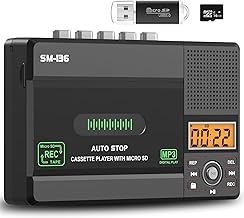
The SEMIER offers two listed ways to convert cassette audio to MP3: save to the included SD card or connect to a computer by USB and use Audacity. It also supports SD card playback and recording, has an LCD for navigation, and includes a built-in microphone and speaker. The product is described as compact and weighs 0.52 pounds.
Best for: Buyers who want both standalone SD-card capture and a computer-based conversion option. The two workflows offer flexibility when saving files or preparing them for a CD.
Limitation: The listing says it does not support Type IV or metal tapes. Check the tape type before choosing this model, and plan on a separate computer and burner for making a CD.
Buying Guide: How to Convert Cassette Tapes to CD
Do cassette-to-CD converters burn discs directly?
Not necessarily. The products in this guide are described as cassette-to-MP3 converters, not as devices with built-in CD burners. The usual process has two stages: capture the cassette as digital audio, then burn those files to a blank CD using a computer equipped with a CD burner and suitable disc-burning software.
Before buying, check whether your computer has a built-in optical drive. Many newer computers do not. If yours lacks one, you may need an external CD burner. Confirm that your chosen computer and burning software can create an audio CD, rather than only copying files onto a data disc.
Should you choose USB or SD-card recording?
A USB-to-computer workflow, such as the one listed for DIGITNOW and Reshow, puts the transfer in a computer-based process from the start. That can be convenient when you want to organize or prepare the audio files on your computer. The ClearClick instead saves MP3 files to a USB flash drive without requiring a computer during capture.
SD-card models, including the KLIM K7 and SEMIER, can save recordings to removable storage. This can be useful if you want to capture tapes separately from the CD-burning step. You will still need a way to move the files onto a computer for disc creation, such as an SD card reader or a computer with a compatible card slot.
Is automatic track splitting important?
Track splitting determines whether the recording is saved as separate files or as a longer continuous file. The ClearClick listing specifically identifies an automatic track-splitting feature. That may reduce manual file separation when a tape has multiple songs, but automatic splitting may not match every song boundary perfectly. The other product descriptions do not specify automatic track splitting, so check the instructions before assuming files will be divided by song.
If you receive one long recording, you can use audio-editing software to split it into tracks before burning a CD. This is an extra step, but it gives you more control over where each track begins and ends.
What tape types and condition should you check?
Check the converter’s stated tape limitations. The SEMIER listing excludes Type IV and metal tapes, so it is not the right choice if you need to convert those formats. The product information for the other models does not provide the same tape-type details; contact the seller or consult the manual if your collection includes uncommon tapes.
Also consider the physical condition of each cassette. A damaged or tangled tape may not play reliably. Avoid forcing a cassette into a player, and stop if the tape appears to snag. Digitizing a fragile recording may require extra care because playing the tape is part of the conversion process.
How should you prepare MP3 files for an audio CD?
After conversion, copy the MP3 files to a computer and check that the recordings play before burning. Rename files in the order you want them to appear, and listen for missing sections or unusually low volume. Keep an untouched backup of the captured files in case you later need to create another disc or edit a recording.
When using CD-burning software, choose the option to create an audio CD if the disc needs to play in a standard CD player. A data CD containing MP3 files is different and may not play in all standalone CD players. Follow the software’s instructions and verify the finished disc on a player that supports the intended disc format.
Which features matter most for your use?
- For fewer devices during capture: Consider the ClearClick or an SD-card model. They save digital files to removable storage, but a computer is still needed later to burn a CD.
- For computer-based transfers: Consider DIGITNOW or Reshow, which list USB conversion to a computer.
- For more than one transfer route: SEMIER lists both SD-card and USB conversion.
- For portable tape listening: KLIM K7 and Reshow list portable-player features, while KLIM also includes an integrated speaker and earphones.
- For tape compatibility concerns: Check the model’s stated supported tape types before purchase.
Frequently Asked Questions
Can I convert a cassette tape directly to a CD?
The products listed here capture cassette audio as MP3 files rather than burning a CD directly. Convert the tape first, then use a computer with a CD burner and audio-CD software to make a disc.
Do I need a computer to digitize every cassette?
No. The ClearClick is described as saving MP3 files to a USB flash drive without a computer during capture. KLIM K7 and SEMIER list SD-card recording. You will need a computer or another suitable device to prepare and burn the files onto a CD.
Can an MP3 file be burned to a CD?
Yes, but select the correct disc format. An audio CD is designed for compatible CD players, while a data CD stores files and may not work in every standalone player.
Which product lists automatic song splitting?
The ClearClick listing identifies automatic track splitting into individual MP3 files. The other product descriptions provided here do not specify that feature.
Which converter should I avoid for Type IV or metal tapes?
The SEMIER listing says it does not support Type IV or metal tapes. For those tapes, choose a model only after confirming its compatibility with the manufacturer or seller.
Will a burned CD sound better than the original cassette?
Converting a cassette preserves its playback as a digital recording; it does not restore audio information that is absent from or degraded on the tape. The digital copy can make the recording easier to store and play, but its source remains the cassette.