
The best cassette-to-CD setup for a Mac starts by converting tape audio into digital files, then burning those files to a CD using a compatible Mac workflow. These five products capture cassette audio in different ways: the DigitPro is the clearest fit for Mac users who want computer-based capture, while the ClearClick and KLIM K7 suit buyers who prefer recording to included removable storage. Check your macOS version and CD-burning equipment before choosing.
| Product | Best For | Recording Destination |
|---|---|---|
| DigitPro USB Audio Capture Card | Mac users checking OS compatibility | Computer |
| ClearClick Cassette-to-USB | Computer-free MP3 capture | USB flash drive |
| KLIM K7 Cassette Player | Portable conversion to SD card | SD card |
| SEMIER Cassette Converter | Choice of SD card or computer capture | SD card or computer |
| Reshow Portable Cassette Player | USB transfer and headphone listening | Computer |
DigitPro USB Audio Capture Card

Best for: Mac owners who want to record audio directly to a computer and whose operating system falls within the stated compatibility range. The DigitPro connects analog audio sources to a computer by USB and accepts either 3.5 mm or left/right RCA inputs. Its listed uses include capturing cassette tapes and converting audio to MP3 or WAV.
This is the most directly relevant option for a Mac-based digitizing workflow because the product explicitly lists Mac support. However, the stated Mac range is OS 10.7–10.14, and the listing says it is not compatible with Mac OS 10.15. Do not assume it will work with newer macOS versions; verify compatibility before buying.
The device captures audio to a computer, not directly to a CD. After recording, you still need a suitable way to create an audio CD, such as a compatible CD burner and software that supports the task. Choose this if computer-based recording and the listed inputs match your setup. Avoid it if you use an unsupported macOS version or want a standalone converter with no computer.
ClearClick Cassette-To-USB Converter

Best for: Buyers who want to save cassette recordings as MP3 files without setting up computer recording software. This second-generation ClearClick model transfers cassette audio to a USB flash drive and includes a 16 GB drive. The listing describes setup as not requiring a computer, software, or drivers.
Its automatic track-splitting mode is a useful distinction: it can split tracks into individual MP3 files rather than saving an entire tape as one continuous file. That can make it easier to sort music before creating a CD, although the product information does not explain how it identifies track boundaries or how the feature performs with spoken-word tapes.
The product creates MP3 files on USB storage; it is not itself a CD burner. To make a CD for a standard audio-CD player, transfer the files to a computer and use a compatible burning workflow. Choose this if simple, computer-free capture and track splitting matter most. Avoid it if you specifically need direct recording to a Mac or require editable capture settings that are not listed.
KLIM K7 Cassette Player

Best for: People who want a portable cassette player that converts tapes to MP3 files on removable storage. The KLIM K7 includes a 16 GB SD card and an SD card reader, and its listed conversion process does not require another device or an app download. It can also play music stored on the SD card.
The built-in microphone and speaker add recording and playback functions beyond tape conversion. The product can record directly to the SD card, but its listing specifically says it does not record onto cassette tapes. An included pair of earphones and a 3.5 mm earphone jack provide another listening option.
For a Mac-to-CD project, the practical sequence is to convert the tape, move the resulting files from the SD card to a computer, and then burn a CD using compatible equipment and software. The listing does not state a macOS compatibility range or describe CD burning. Choose this if portability and self-contained SD-card recording are priorities; choose a computer-connected capture device instead if direct Mac recording is essential.
SEMIER USB-Cassette And SD Converter
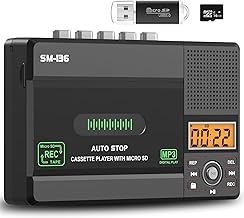
Best for: Buyers who want two stated conversion routes: recording MP3 files to the included SD card or connecting the cassette player to a computer by USB and using Audacity. This compact player also supports SD-card music playback and has an LCD for navigating recordings.
The SEMIER is also a cassette recorder with a built-in microphone, so it can record audio beyond tape playback. Its listed dimensions are 6.3 by 3.9 by 1.2 inches, and its weight is 0.52 pounds. Those details make it a portable choice for someone who wants tape conversion and basic recording in one device.
The product listing cautions that it does not support Type IV or metal tapes. Its computer-transfer method depends on the included software and a USB connection, so Mac users should verify the software and operating-system requirements for their computer before purchasing. Choose this if SD-card and computer workflows are both useful. Avoid it if your tapes are Type IV or metal.
Reshow Portable Cassette Player

Best for: Buyers who want a portable tape player that can transfer cassette audio to a computer by USB and also connect to headphones or other equipment through a 3.5 mm jack. The listing describes conversion to MP3 and notes that the player works with laptop CD burners.
Its standard headphone use and 3.5 mm AUX connection make it a flexible listening option as well as a converter. The AUX jack can connect to earbuds, headphones, or a car stereo, according to the product details. This may suit a buyer who wants to listen to tapes directly in addition to creating digital files.
The listing does not provide a specific Mac operating-system compatibility range, so confirm that its USB conversion method works with your Mac before relying on it. It also does not describe an included CD burner; the reference to laptop CD burners is not a guarantee that every Mac can burn discs. Choose this if portable playback and USB-based transfer both matter. Avoid it if you need clearly documented support for a particular macOS release.
Buying Guide: How To Choose A Cassette-To-CD Setup For Mac
Do you need a converter that burns CDs directly?
None of these products is described as a complete cassette-to-CD burner. They capture tape audio as MP3 files, or in the DigitPro’s case as MP3 or WAV files, then leave CD creation to a separate computer-and-burning workflow. Think of the process in two stages: first convert the cassette; then prepare and burn the digital audio to disc.
Before buying, decide what kind of disc you want. An audio CD is intended for standard CD players, while a data CD may simply store audio files and may not play in every CD player. The product listings do not specify a full disc-authoring process, so check the capabilities of your Mac, burning hardware, and software.
Which option is better for a Mac?
The DigitPro listing explicitly names Mac OS 10.7–10.14 and excludes Mac OS 10.15. That makes its stated compatibility unusually specific, but it does not establish support for current macOS releases. Confirm your exact operating-system version before purchase. The other listings do not provide a comparable Mac version range, so do not infer compatibility merely because a product connects by USB.
If you prefer not to record directly to a computer, the ClearClick, KLIM K7, and SEMIER offer removable-storage workflows. You can move captured files to a Mac later, but confirm that the storage card or USB drive and your Mac’s available connections are usable together. The product details do not list every included adapter or computer connection requirement.
Should you record to USB, SD card, or a computer?
- USB flash drive: ClearClick records MP3s to an included 16 GB USB drive and lists automatic track splitting. This suits buyers who want a standalone capture process.
- SD card: KLIM K7 and SEMIER record to SD storage. The KLIM includes a 16 GB card and card reader; SEMIER also includes an SD card.
- Computer: DigitPro records through a USB connection and lists 3.5 mm and RCA inputs. SEMIER and Reshow also describe USB-based computer conversion, but their Mac requirements are not fully specified.
Computer capture can be convenient when you want files available for editing or organizing, but it depends on operating-system and software support. Removable storage can reduce setup at the recording stage, but it adds a file-transfer step before CD creation.
What tape types and inputs should you check?
Check the tape format before choosing. SEMIER explicitly excludes Type IV and metal tapes. The other supplied product information does not state a comparable tape-type limitation, so ask the seller or consult the product documentation if your collection includes unusual tape formulations.
Input connections matter when using a separate cassette player or audio source. DigitPro lists both 3.5 mm and left/right RCA inputs. Reshow lists a 3.5 mm AUX jack, while the other products emphasize built-in cassette playback and conversion. Match the available outputs on your equipment to the converter’s stated inputs rather than assuming that plugs or adapters are included.
How should you prepare files for an audio CD?
Start by capturing the tape and checking that the resulting files play correctly. Label tracks and organize the files before opening your chosen CD-burning workflow. If the destination is an audio CD, use a process that authors an audio disc rather than simply copying MP3 files as data. Keep an untouched copy of the digital recordings, because a CD should not be the only copy of valuable audio.
Track splitting can save manual organization when it works as intended, but ClearClick is the only product here that specifically lists automatic track splitting. For tapes with long pauses, spoken content, or closely connected songs, review the resulting files rather than assuming each split will match your preferred track boundaries.
Frequently Asked Questions
Can these products convert cassette tapes straight to a CD?
No product in this list is described as directly burning cassette audio to a CD. They create digital audio files or record to removable storage. A separate compatible computer, CD-burning equipment, and disc-authoring workflow may be needed.
Which product explicitly lists Mac compatibility?
The DigitPro USB Audio Capture Card lists Mac OS 10.7–10.14 support and says it is not compatible with Mac OS 10.15. Its listing does not confirm support for newer macOS versions.
Can I create an audio CD from MP3 files?
Yes, if your computer’s CD-authoring workflow can create an audio CD from those files. Copying MP3 files to a disc as data is different and may not produce a disc that works in a standard CD player.
Which converter includes automatic track splitting?
The ClearClick Cassette Tape to USB converter lists an automatic track-splitting mode that saves tracks as individual MP3 files.
Which product should I avoid for Type IV or metal tapes?
The SEMIER listing says it does not support Type IV or metal tapes. Check the specific product documentation for any other model if your tapes use those formulations.
Do these products include a CD burner?
The supplied product details do not state that any of the five includes a CD burner. Treat the converter and CD-burning equipment as separate parts of the project.