
To transfer microcassette audio to a computer, play the recording through a compatible cassette player and capture its sound with a USB audio adapter, or use a cassette-to-digital player that records to a computer or memory card. The DIGITNOW and DigitPro adapters are options for people who already have a player with an audio output. The standalone cassette converters are better suited to buyers who also need a tape player. Check the tape format and your computer’s operating system before choosing.
| Product | Best For | Connection or Recording Method |
|---|---|---|
| DIGITNOW USB Audio Capture Card | Connecting an existing tape player to a computer | 3.5mm or stereo RCA input to USB |
| DigitPro USB Audio Capture Card | Analog sources and supported older Mac systems | 3.5mm or stereo RCA input to USB |
| Wiistar USB Audio Capture Card | Buyers prioritizing listed sampling-rate support | RCA or 3.5mm input to USB |
| Audio Cassette to Digital Converter | Buyers who need a cassette player and computer transfer | USB-C connection to a computer |
| SEMIER Small Cassette Tape Player | Computer or SD-card recording, with a tape-type limitation | USB recording or included SD card |
DIGITNOW USB Audio Capture Card

Best for: People who already own a cassette or microcassette player with a suitable audio output and want to record its playback on a computer. This adapter connects an audio source to a PC through USB, rather than playing tapes by itself.
Its listed inputs include a 3.5mm connection and left/right audio connectors. The product description says it can capture audio from microphone, line-in, or auxiliary sources and save recordings as MP3 or WAV. It is described as plug-and-play, requires no extra power supply, and comes with Audacity software.
Why it was selected: The combination of common analog inputs and computer recording makes it a practical option for converting playback from an existing tape deck or player. It may also suit people digitizing other analog audio sources.
Limitation: It does not include a cassette player. You need a separate player and must confirm that its output can connect to one of the adapter’s inputs.
DigitPro USB Audio Capture Card

Best for: Buyers who have a tape player or another analog audio source and need a USB connection to a computer. The adapter accepts 3.5mm or left/right audio connector inputs and captures audio for conversion to MP3 or WAV.
The product is described as a plug-and-play device that needs no separate power supply. Its listed uses include transferring cassette tapes, vinyl records, and radio audio to a PC or Mac. The stated operating-system support includes Windows versions from XP through Windows 10 and Mac OS 10.7 through 10.14.
Why it was selected: It offers the same basic input-to-USB approach as other capture cards, with operating-system information that can help buyers check compatibility before purchasing. It is better for someone who already has playback equipment than for someone starting without a cassette player.
Limitation: The listing says it is not compatible with Mac OS 10.15. Buyers using a newer or different operating system should verify support rather than assume compatibility.
Wiistar USB Audio Capture Card

Best for: People who already have an audio player and want an adapter whose listed specifications include audio sampling up to 96 kHz and 24-bit. The product accepts RCA left/right or 3.5mm audio and connects to a computer by USB.
Wiistar describes the device as suitable for capturing sound from sources such as tape, MiniDisc, phono, and CD players. It supports Wave or MP3 output for use after capture and is described as plug-and-play. These features make it a flexible choice for digitizing more than one kind of analog recording.
Why it was selected: It provides familiar input options and specifies a maximum sampling rate and bit depth, useful details for buyers comparing capture hardware. Choose it if those listed specifications matter to your workflow.
Limitation: The capture card is not itself a tape player. The listed maximum sampling rate does not guarantee a particular result from a microcassette; source condition and playback equipment also affect the recording.
Audio Cassette To Digital Converter

Best for: Buyers who need a cassette player as well as a way to make digital audio files. The product description says it connects to a PC or Mac through a USB-C port and can save audio in formats such as WAV, MP3, or WMA.
Unlike a basic USB capture card, this product is described as a cassette player and converter. It also has a built-in speaker and a 3.5mm headphone jack for listening. That combination may be useful when you want to check the tape’s playback without relying solely on a separate listening device.
Why it was selected: It combines tape playback and computer transfer in one device, which may simplify setup for people who do not already own a cassette player. The listing recommends QuickTime for computer use.
Limitation: The description refers to audio cassette tapes generally and does not specifically confirm microcassette compatibility. Check the tape’s size and format against the device before buying; a microcassette may require a dedicated player.
SEMIER Small Cassette Tape Player
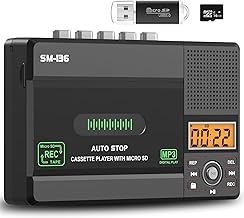
Best for: Buyers who want a cassette player with two listed recording paths: converting cassette audio to MP3 on an SD card or connecting the player to a computer by USB and using Audacity. An SD card is included, according to the product details.
The device also supports SD-card playback and recording, has an LCD for navigation, and includes a built-in speaker and headphone jack. Its compact dimensions and stated weight may appeal to people who want a portable player as well as a converter. The listing describes recording through a built-in microphone, too.
Why it was selected: It offers more than one way to save recordings, so buyers can choose computer-based capture or direct SD-card conversion. It may be better for someone who wants a standalone player than an adapter-only setup.
Limitation: The listing explicitly says it does not support Type IV or metal tapes and is intended for Type I tapes. It also does not establish that it plays microcassettes, so confirm physical tape-format compatibility first.
Buying Guide: How To Transfer Microcassette Audio
Microcassettes are smaller than standard audio cassettes. A standard cassette converter or full-size cassette deck should not be assumed to accept them. Before choosing any product, identify the tape format and find a player designed to play that exact format. Then check whether the player offers an audio output that can connect to a USB capture device, or choose a converter that explicitly supports the tape.
Do You Already Have A Microcassette Player?
If you already have a compatible player, a USB audio capture card may be the most direct route. Connect the player’s audio output to the adapter’s matching input, then connect the adapter to the computer. The DIGITNOW, DigitPro, and Wiistar products are capture cards; none is described as including a cassette player.
Check the player’s available output before selecting an adapter. A 3.5mm output and stereo RCA outputs use different connectors. If the player has neither type of output, you may need a different recording method or suitable audio connection equipment. Do not assume that a product’s input will fit every cassette player.
Would A Standalone Cassette Converter Be Easier?
A standalone converter can reduce the number of separate devices needed when it includes its own tape transport. The Audio Cassette to Digital Converter and SEMIER player are described as cassette players with digital recording functions. However, their descriptions do not clearly confirm microcassette playback. Verify the tape format directly before relying on either for a microcassette project.
Standalone devices can offer different destinations for recordings. The Audio Cassette to Digital Converter describes saving files to a computer over USB-C. SEMIER lists both USB recording with Audacity and direct MP3 recording to an SD card. Consider whether you prefer computer-based file management or a memory-card workflow.
Which Connections And Software Should You Check?
Confirm that your computer has an appropriate USB connection and that the operating system is supported. The DigitPro listing gives specific older Mac OS versions and excludes Mac OS 10.15, so it is especially important to check compatibility for that model. DIGITNOW lists Windows support and refers to Mac support, while Wiistar describes USB plug-and-play operation. Listings can change, so verify current requirements before purchase.
Recording software captures the audio signal; it does not make an incompatible tape player compatible with a microcassette. Audacity is named in the DIGITNOW and SEMIER product details, and the DigitPro listing also describes audio capture. Choose software and a file format that suit your computer and intended use. WAV can be useful when retaining an uncompressed working copy matters; MP3 uses a compressed format for easier sharing.
How Can You Improve A Transfer?
Start with a working, format-compatible player and inspect the tape for visible damage. Play and monitor a short section before recording the full side. Set the computer’s recording input to the connected capture device, check that the input is not muted, and adjust the recording level to avoid clipping. Make a test file and listen to it before continuing.
Record in a quiet environment and avoid moving the player or cables during capture. If the recording is too quiet, increase the input level carefully rather than raising it until the sound distorts. Keep an untouched original capture, then make a separate copy for trimming, noise reduction, or other editing. These steps preserve a clean source for later changes.
What Matters Most When Comparing These Options?
- Tape compatibility: Confirm that the playback device accepts microcassettes, not just standard audio cassettes.
- Included equipment: Capture cards require a separate player; standalone converters include a player according to their descriptions.
- Input type: Match the player’s output to the adapter’s 3.5mm or RCA input.
- Computer support: Check operating-system and USB requirements, especially for older software or Mac versions.
- File destination: Decide whether you want to record directly to a computer or use an SD card where supported.
- Audio format: Check whether the device or software offers the file format you need, such as WAV or MP3.
Frequently Asked Questions
Can I Connect A Microcassette Directly To A Computer?
Usually, you need a compatible microcassette player to play the tape and an audio connection or converter to capture its sound. A computer USB port cannot play a cassette by itself.
Will A Standard Cassette Converter Play Microcassettes?
Not necessarily. Microcassettes are a different physical format from standard audio cassettes. Check the product specifications for explicit microcassette support before purchasing.
Do USB Audio Capture Cards Include A Tape Player?
The DIGITNOW, DigitPro, and Wiistar products listed here are audio capture cards. Their descriptions do not say that they include a cassette player, so you need a compatible playback device separately.
Should I Save The Recording As WAV Or MP3?
WAV is an uncompressed audio format and can be useful as an archival or editing copy. MP3 is compressed and can be more convenient for sharing or everyday playback. The best choice depends on your storage and quality needs.
Can I Use The DigitPro Adapter With Any Mac?
No. Its listing specifies Mac OS 10.7 through 10.14 and says it is not compatible with Mac OS 10.15. Check the current product information for your exact operating system before buying.
Can SEMIER Convert Type IV Or Metal Tapes?
The product details say SEMIER does not support Type IV or metal tapes and specify Type I tapes. They do not confirm microcassette compatibility, either, so check both tape type and physical format.