
To transfer cassette audio to a PC, choose a USB cassette player or an audio-capture adapter that records into computer software. The Reshow and DIGITNOW players are portable options for USB-based conversion, while the DigitPro capture card connects a separate cassette player to a computer. The ClearClick saves MP3 files to a USB flash drive instead of recording directly to a PC, and SEMIER offers both SD-card and computer-based conversion. The right choice depends on whether you prefer direct computer recording or a simpler file-transfer workflow.
| Product | Best for | Transfer route |
|---|---|---|
| Reshow Cassette Tape Player | Portable USB conversion | Cassette player to computer by USB |
| ClearClick Cassette Tape to USB | Computer-free capture | Cassette to USB flash drive |
| SEMIER Cassette Player | SD card or Audacity workflow | Cassette to SD card or PC by USB |
| DIGITNOW Cassette Converter | Portable playback and conversion | Cassette player to computer by USB |
| DigitPro Audio Capture Card | Using a separate cassette deck | Audio output to PC by USB |
Reshow Cassette Tape Player

The Reshow is a portable cassette player designed to convert tapes to MP3 through a USB cable. Its compact format also supports ordinary cassette playback, so it can serve both as a listening device and as a transfer tool. The listed features say it works with laptops and personal computers and can connect to standard headphones or other equipment through a 3.5 mm jack.
Best for: Buyers who want a portable cassette player with a USB conversion feature and a headphone connection. It is a relevant choice for transferring a small collection without relying on a full-size tape deck.
Why it was selected: The product description explicitly identifies cassette-to-MP3 conversion through USB and computer compatibility, which closely matches the goal of transferring tapes to a PC.
Consider: The provided details do not specify the exact recording software or step-by-step computer setup. Check the included instructions to confirm the required workflow before starting a large transfer project.
ClearClick Cassette Tape To USB

The ClearClick records cassette audio as MP3 files on a USB flash drive. A 16 GB drive is included, and the listed features say the device requires no computer, software, or drivers for capture. It also has an automatic track-splitting mode that separates recordings into individual MP3 files.
Best for: People who want to capture tapes without setting up recording software on a computer. After recording, the files can be moved from the USB drive to a PC using the computer’s USB connection.
Why it was selected: Its standalone capture process and automatic track splitting can simplify digitizing tapes, especially for users who do not want to manage a live recording session in computer software.
Consider: This is a USB-drive workflow, not a direct-to-PC recording method. Choose another option if you need to record straight into a computer or want to select and configure PC audio software during capture.
SEMIER Cassette Player And Converter
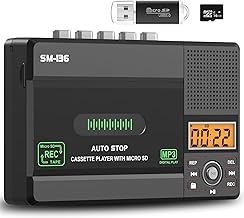
The SEMIER is a compact cassette player and recorder with two listed conversion routes. It can save cassette audio as MP3 files to the included SD card, or connect by USB for conversion using the included Audacity software. The product also has an LCD for navigation, a built-in microphone, and support for SD-card music playback and recording.
Best for: Buyers who want to choose between recording to a memory card and using computer software. The SD-card option can be useful for standalone capture, while the USB-and-Audacity route is more directly suited to a PC workflow.
Why it was selected: Its two conversion methods provide flexibility, and the included SD card is identified in the product details. The listed compact dimensions and weight also make it a portable option.
Consider: The product description says it does not support Type IV or metal tapes. It also specifies Type I tape support, so check your cassette type before choosing this converter.
DIGITNOW Cassette Tape To MP3 Converter

The DIGITNOW cassette player converts tapes to MP3 through a USB connection and is described as compatible with laptops and personal computers. Its listed features refer to using Audacity software for conversion. The unit also has a 3.5 mm headphone jack and includes earphones, so tapes can be listened to through the player as well as digitized.
Best for: Users looking for a compact cassette player that supports a computer-based MP3 workflow and provides headphone playback. It is a practical match for listeners who want one device for playing tapes and transferring their audio.
Why it was selected: The listing directly describes USB conversion to MP3 and mentions computer compatibility, as well as the option to play or burn the resulting files using other devices.
Consider: The listed features do not describe automatic track detection or splitting. Plan to manage the recording and divide long recordings into separate tracks in software if you need individual song files.
DigitPro USB Audio Capture Card

The DigitPro is an audio-capture adapter for routing analog sound into a computer over USB. It has stereo RCA and 3.5 mm inputs and is described as supporting cassette tapes, records, and radio audio. Recording software on the PC or Mac can capture the input and save it as MP3 or WAV.
Best for: People who already have a cassette player or deck with a suitable audio output and want to record into a computer. It is better suited to a desktop-style setup than a self-contained portable cassette player.
Why it was selected: Its input options and USB computer connection make it a direct way to capture audio from an external tape player. The listing also specifies supported Windows versions and a range of Mac OS versions.
Consider: This product is an adapter, not a cassette player. You need a separate tape source with an appropriate RCA or 3.5 mm output. The listed Mac compatibility does not include Mac OS 10.15.
Buying Guide: How To Transfer Cassette Tapes To A PC
Do you want direct computer recording or file transfer?
Direct computer recording sends audio from the cassette player to a PC while the tape plays. USB cassette converters and the DigitPro capture card support this type of workflow, although the setup differs. A USB cassette player connects the tape source to the computer, while an audio-capture card takes an analog signal from a separate player.
A standalone converter such as the ClearClick records files to a USB flash drive. You then connect that drive to the PC and copy the saved MP3s. This avoids computer recording software during capture, but it is not the same as recording directly to the computer.
Do you already own a cassette player?
If you have a working deck with RCA or 3.5 mm audio output, an audio-capture adapter may let you use it as the tape source. Check the deck’s output connections against the adapter’s inputs before buying. If you do not have a player, a portable USB cassette converter may be a more self-contained option.
Which file format and software do you need?
MP3 is a widely used compressed format for everyday listening and sharing. The listed products describe MP3 conversion, and the DigitPro also specifies MP3 or WAV output through computer recording. If preserving an uncompressed recording matters to your workflow, confirm that the chosen product and software support your preferred format before capturing the tapes.
Software can also determine how recordings are organized. The SEMIER and DIGITNOW listings mention Audacity, while the ClearClick advertises automatic track splitting. If a converter does not split tracks automatically, you may need to edit the recording yourself to create a separate file for each song.
Check tape type and physical condition
Confirm the tape type supported by the player. The SEMIER listing specifically excludes Type IV and metal tapes and identifies support for Type I tapes. The other provided product details do not give the same level of tape-type information, so consult their instructions if your collection includes specialty tapes.
Inspect tapes before playback. If a cassette is damaged, tangled, or unusually difficult to play, avoid forcing it through a player. Digitizing happens in real time: a 60-minute tape generally requires the tape to play through its duration for a complete recording. Set aside time to monitor playback and check the resulting files.
How should you compare these options?
- Choose Reshow if you want a portable cassette player that lists USB-to-MP3 conversion and computer compatibility.
- Choose ClearClick if you prefer a standalone capture process that saves MP3s to an included USB drive.
- Choose SEMIER if you want both SD-card recording and a USB conversion route using Audacity, and your tapes meet its stated type requirements.
- Choose DIGITNOW if you want a portable player with USB conversion and headphone playback.
- Choose DigitPro if you already own a cassette deck and want to capture its analog output on a PC or a supported Mac.
What should you do before a full transfer?
Start with one short test recording. Confirm that the computer recognizes the device or that the standalone converter creates a file. Listen to the result, check the volume and sound quality, and make sure the file can be opened on your PC. A short test can reveal connection or software issues before you commit to recording a whole tape collection.
Use clear file names that identify the cassette, side, and recording date when appropriate. Keep a separate backup of the converted files after transfer. These organization steps help make older recordings easier to locate and reduce the risk of losing the only digital copy.
Frequently Asked Questions
Can I transfer a cassette tape directly to a PC?
Yes. Use a USB cassette converter or connect a cassette player’s audio output to a USB capture adapter. Record the tape using the software or workflow specified for the device.
Can I digitize tapes without a computer?
Yes. The ClearClick saves MP3 files to a USB flash drive without requiring a computer, software, or drivers during capture. Connect the drive to a PC afterward to copy the files.
Do I need Audacity to transfer cassette audio?
Not for every product. The SEMIER and DIGITNOW listings refer to Audacity, while the ClearClick is described as a standalone recorder. Follow the setup instructions supplied with the selected device.
Will one cassette transfer take the same amount of time as playback?
For a complete recording, the tape generally needs to play through while audio is captured. The time depends on the cassette’s recorded duration and whether you record one side or both sides.
Can I use the DigitPro without a cassette player?
No. The DigitPro is an audio-capture adapter, not a tape player. It requires a separate cassette player or deck with a compatible audio output.
Which option is best if I want separate song files?
The ClearClick listing specifically identifies automatic track splitting. With products that do not list automatic splitting, you may need to use audio software to divide a continuous recording into individual files.