
Best Cassette Tape to CD Burners for Archiving Old Music
Find reliable cassette-to-CD solutions that convert tapes to digital formats and then to CD. This guide targets buyers seeking easy-to-use devices that can digitize cassettes, whether you’re archiving family music, lectures, or classic mixes. The top picks below are suited for different needs: compact USB converters for quick transfers, PC-free USB drives for on-the-go digitizing, and all-in-one recorders with rip-ready MP3 outputs. A quick summary follows, highlighting the best use case for each product.
| Product | Best For | Digitizing Method | Format |
|---|---|---|---|
| Reshow Cassette Tape Player | Casual collectors wanting USB MP3 transfer | USB connection to PC | MP3 |
| DIGITNOW USB Cassette Player | On-the-go digitizing with no PC | USB drive or internal memory | MP3 |
| Tinxumb Cassette Tape Player | Home use with CD burn capability | USB to PC, or direct to CD burn | MP3 |
| HopCentury Music Digitizer CD Recorder | Direct CD burning from analog sources | 3.5mm/RCA inputs to USB drive | MP3 |
| ClearClick Cassette Tape to USB 2.0 | Simple, set-and-go digitizing | USB flash drive | MP3 |
Reshow Cassette Tape Player – Portable Tape to Digital Converter

Reshow’s portable cassette-to-digital converter is designed to quickly transform old tapes into MP3 files via USB. Best for casual listeners who want a simple, laptop-friendly USB workflow and then to burn to CD with a PC. The device supports standard cassette playback and common 3.5mm AUX connections for flexible output to headphones, car stereos, or external speakers. The simple setup is ideal for users who want a straightforward path from tape to digital, with minimal fuss.
Best for: casual nostalgia enthusiasts who want a quick conversion to digital MP3. Limitations: data shows MP3 output; advanced editing or batch processing requires separate software or hardware.
DIGITNOW USB Cassette Player
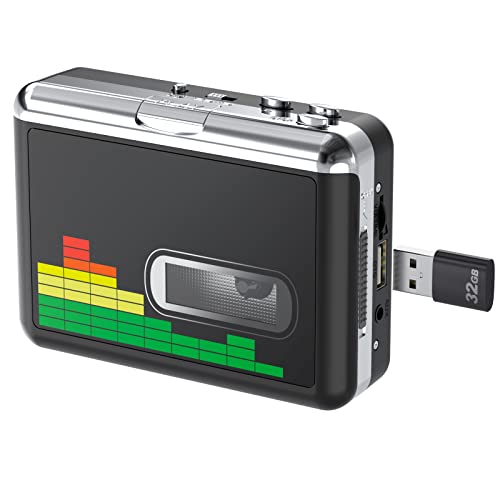
This DIGITNOW model emphasizes PC-free operation. Insert a USB flash drive and record cassettes directly to MP3 files, then simply pop the drive into a computer or burn to CD via software. It includes volume control and supports auto reverse for uninterrupted playback. Best for users who want a portable, no-computer workflow. A potential limitation is reliance on USB drive compatibility and drive formatting (FAT32 up to 128G).
Best for: users who want a PC-free workflow and quick MP3 extraction. Caution: ensure USB drive is FAT32-formatted and compatible with the device.
Tinxumb Cassette Tape Player

Tinxumb offers a USB-connected cassette-to-MP3 converter that enables quick transfers to MP3 files, with option to burn to CD using a laptop. It emphasizes Hi-Fi sound retention and broad compatibility with a 3.5mm AUX input for flexible listening. Best for: home users who want crisp digitization with easy CD-burning potential. Limitation: may rely on separate CD burning steps when not using a PC with CD drive.
HopCentury Music Digitizer CD Recorder

HopCentury positions itself as a music digitizer that captures audio via 3.5mm or RCA outputs and stores it on USB drives or SD cards. It supports direct recording without a PC and is suitable for those who want to back up or archive melodies, lectures, or performances. Best for: users seeking an all-in-one capture-and-store solution. Caution: ensure the chosen storage medium is formatted correctly (FAT32) and compatible with the device’s USB/SD interfaces.
ClearClick Cassette Tape to USB 2.0 (Second Generation)

ClearClick emphasizes instant setup with no computer required. It transfers cassette tapes to a 16 GB USB drive in MP3 format and includes an automatic track-splitting feature. Best for: individuals who want a plug-and-play solution for direct USB transfer and easy organization of tracks. Limitation: built-in USB drive capacity is fixed at 16 GB; larger collections may require additional drives.
Buying Guide
What compatibility matters?
Look for devices with standard 3.5mm AUX input and USB output compatibility. If you plan to burn CDs, ensure your computer has a CD/DVD drive or access to external burners. For PC-free digitizing, choose models that save directly to USB drives or SD cards.
What output format is best?
MP3 is widely supported across devices and software. If you want higher fidelity, consider devices offering WAV or higher bitrate MP3 options, but note that file size increases. MP3 128 kbps is common and sufficient for archival listening.
How important is auto-reverse and editing?
Auto-reverse reduces manual intervention, useful for tape-heavy transfers. Some models offer automatic track splitting, which helps organize long tapes into separate MP3 files for easier CD burning later.
Do you need a PC to burn CDs?
Not always. Some devices transfer directly to USB or SD and can be used with CD burners on a computer. If you only own a CD burner without a computer, select a model that supports USB-to-CD workflows via compatible software on another device.
Storage and durability considerations
Blank tapes and old cassettes can degrade. Store them in a cool, dry place. When digitizing, back up files to multiple drives or cloud storage to prevent data loss during device aging or drive failures.
What’s the best pick for different buyers?
- Best for quick, PC-based digitizing: Reshow Cassette Tape Player
- Best for PC-free use: DIGITNOW USB Cassette Player
- Best for home CD burning: Tinxumb Cassette Tape Player
- Best all-in-one capture with broad inputs: HopCentury Music Digitizer
- Best plug-and-play with automatic track splitting: ClearClick Cassette Tape to USB 2.0
FAQ
Q: Can these devices convert tapes to CD directly?
A: Some models can transfer to USB or SD for later CD burning; others require a computer to burn CDs from the digital files.
Q: Do I need software to use these devices?
A: Most work with USB drives or PC connections and do not require additional software for basic digitizing. Some may offer optional software for editing or track splitting.
Q: What if my tapes have hiss or wow and flutter?
A: Digitizers do not fix tape degradation. They reproduce the existing audio and may require noise-reduction software after transfer for improved clarity.
Q: How should I store the digital files after transfer?
A: Save to multiple locations, such as a computer, external hard drive, and cloud storage, to minimize data loss risk.
The foregoing product options provide a spectrum of approaches—from PC-free MP3 capture to full PC-based CD burning. By aligning the device with your intended workflow and storage preferences, you can preserve cherished cassette content in durable digital formats suitable for modern playback.