
Choose a phone for the sound you actually need to hear. A sharp alert across a workshop, a clear voice on speakerphone and an audiobook on the kitchen counter put different demands on the speaker. Start with a carrier-compatible handset, then compare speech and notifications at the distance where you use it. The rugged options below have dedicated loudspeakers. A maker’s maximum describes a particular test. Compare everyday alerts and speech in your own setup.
Which loud-speaker phone fits your day?
| Product | Best fit | Speaker and phone setup | What to verify |
|---|---|---|---|
| RugKing | LTE users who want a purpose-built rear speaker without a very large screen | Dedicated rear speaker and 5.99-inch display | Confirm LTE voice support and test with the case in place. |
| Armor 30 Pro | Buyers who can carry a large phone and want to see notifications with the main display face down | Dedicated 4 W rear speaker and 3.4-inch rear display per Ulefone | Check whether your mount leaves space for both the rear speaker and screen. |
| Armor 33 Pro | A workday away from outlets where an included holster can carry a heavier phone | 25,500 mAh rated battery, dedicated speaker and MOLLE holster bundle | Check carrying weight, holster attachment and whether it covers the speaker. |
Swipe to see the full comparison.
On this page
A closer look at the picks

Ulefone RugKing
4G LTE · Dedicated rear speaker
The RugKing gives you a dedicated rear speaker in a handset with a smaller display than the other rugged options here. It fits a buyer who wants an audible timer or work notification and spends more time carrying a phone than watching its screen. Place it on the counter where you expect to use it and check how its rear-facing sound changes when you set it down.
Confirm the carrier accepts this exact model and that voice calls work on your plan. Ulefone's advertised maximum comes from its own test setup. Listen to a call and a spoken clip at useful levels during the return window.
View on Amazon
Ulefone Armor 30 Pro
5G where supported · 6.95-inch main display · Dedicated rear speaker
Choose the Armor 30 Pro if you want to glance at a notification from either side of the phone. The second screen and loudspeaker share the back, so check how you will set the phone on a desk and whether the case or holder obstructs either one. It can be a useful choice if the phone spends more time on a stand or in a bag than in a shirt pocket.
Check size and weight with any case fitted. Confirm your carrier can activate the US listing’s exact variant, including voice service. Judge speech clarity at a comfortable volume before trusting the phone with important calls.
View on Amazon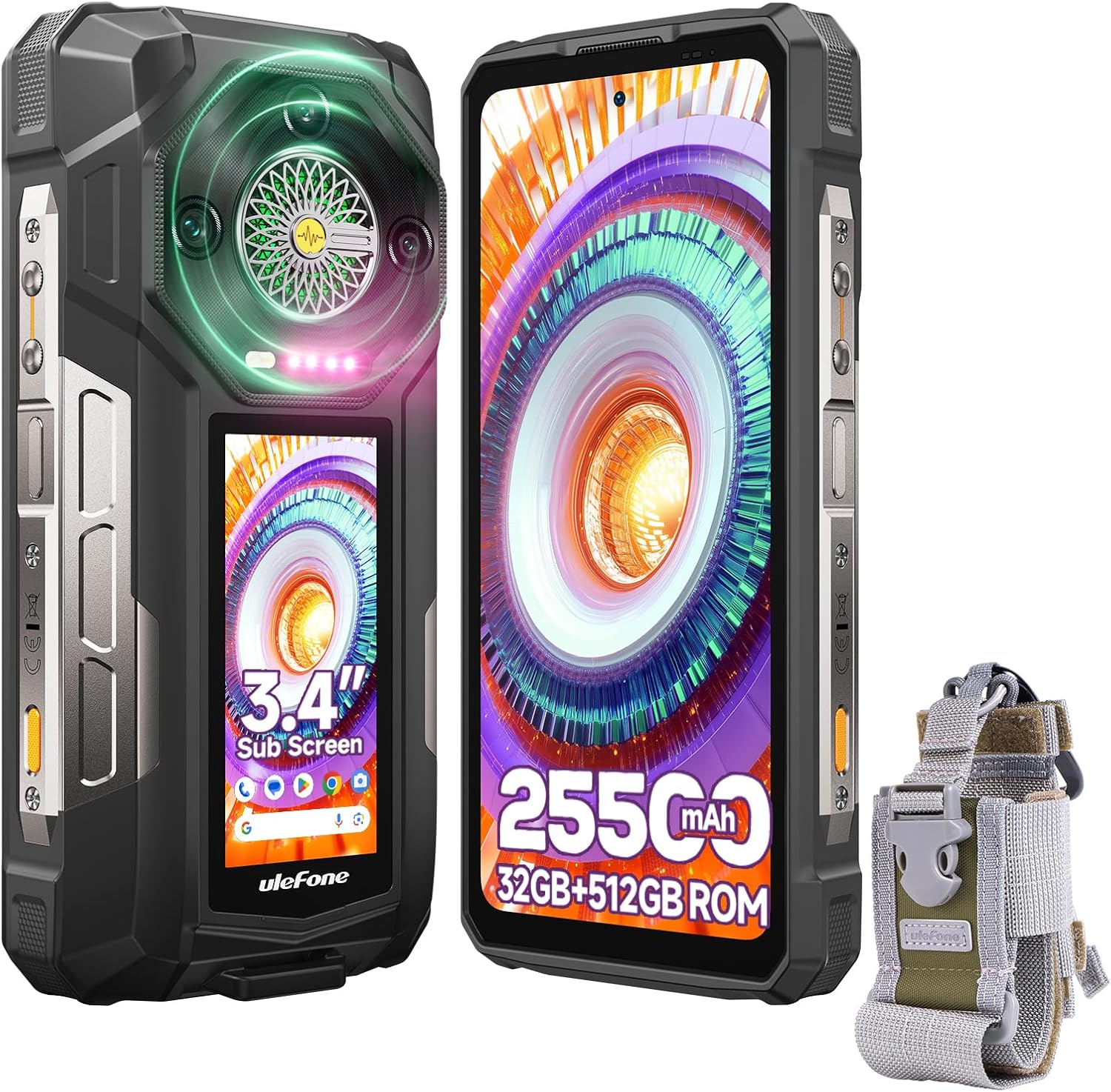
Ulefone Armor 33 Pro with MOLLE Holster
5G where supported · 25,500 mAh rated capacity · MOLLE holster bundle
Choose the Armor 33 Pro when long intervals between charges matter enough to justify a larger handset. The exact US offer bundles a MOLLE holster. Check the fit on your intended pack and play a call or alarm with the phone in the holster, because the location and material can affect the sound that reaches you.
The battery capacity is a maker rating. Try a shift with your usual brightness, network and speaker use before planning around its runtime. Verify carrier activation and confirm you can comfortably carry and reach the phone through a typical shift.
View on AmazonDecide which sound has to carry
Start with the event you miss now. If you miss calls while carrying groceries, a distinctive ringtone and a clear path out of the pocket are more useful than better bass. For speakerphone at a desk, you need clear consonants and a microphone that hears the other end of the table. For spoken navigation in a parked vehicle, mounting position and the direction the grille faces affect what you hear.
Phones commonly store media, call and ringtone levels separately. Open a familiar clip, adjust media volume during playback, then make a call and adjust while the other person speaks. Set the ringtone and notification controls separately. This takes a minute and can distinguish an output limitation from a quiet setting that follows the type of audio you are playing.
Think about which direction the phone usually points. A rear speaker can be handy on a stand with room behind it. A thick protective case or face-up placement on fabric may block the opening. If a bottom grille works well in portrait, wrap your usual landscape grip around the phone and listen again. This catches a surprisingly ordinary problem before you shop by headline numbers.
A handset speaker sits close to its own microphone on a call. Good sound in one direction can coexist with echo or muffled speech in the other. Ask someone to describe what they hear while you talk at your normal volume. Try the same call in a quiet room and near a fan. Write down which end of the call is harder to understand.
Read the loudness claim as a test result
Look for the test distance, test signal, weighting and measurement conditions behind a figure in decibels. An audio peak measured near the grille answers a different question from average speech measured across a table. A power rating in watts describes a different property again. Case openings, speaker direction and processing all influence the sound that reaches your listening position.
Compare the highest level at which you can still recognize words. Select one short clip with a clear voice and another with background music. Use the same files and volume steps. A voice that remains intelligible at a moderate setting can be more useful in a kitchen than a louder setting that makes consonants hard to separate.

Pay attention to the loud parts of the actual sound you need. Many alerts are short and sharp, while a hands-free call has pauses and fluctuating speech. Try an alarm with the screen locked, a real incoming call and a voicemail clip. Test each at the place where you usually leave the phone. A phone’s behavior during one of these tasks gives limited information about the others.
If you have a sound meter, use it for a controlled relative comparison. Keep the same distance, orientation, playback file and room for both phones and note the level while the same part of the clip plays. For a buying decision, write down the distance at which you can understand the words. A meter may show a difference even when the listening outcome feels the same.
Check the carrier, the case and your carrying position
Check the exact US listing and regional model against your carrier’s activation checker. Ask about voice calling as well as data. A phone can share several LTE or 5G bands with a network and still face an activation or voice-service restriction. If you are changing from a physical SIM to eSIM, verify the exact model and plan before moving a number you depend on.
Check the actual dimensions with a case and any lanyard attachment installed. A rugged phone can overwhelm a dashboard clip sized for an ordinary handset. On a bench stand, make sure the support presses on the frame rather than against the rear grille. If the phone must live in a holster, try the ringtone with the holster closed before you choose a sound profile.
Review the controls you can reach while carrying the phone. Can you raise call volume with a glove? Does a holster press the side buttons? Can you see the caller or timer without moving the phone? A large battery may be helpful on long shifts, but the carrying and charging arrangement needs to suit the daily routine.
For a noisy workplace, start with the organization’s approved notification or communication system. Review NIOSH guidance on noise exposure and ask which alert methods are permitted. A predictable vibration, an approved visual alert or a separate room speaker can be easier to recognize than adding volume to an already noisy area.
| Problem to solve | Try first | What to compare in a new phone |
|---|---|---|
| Missed calls in a pocket | Distinct ringtone and vibration | Audibility through the holster or clothing |
| Muffled remote voice | Set active call volume during a call | Speech clarity and microphone pickup |
| Speech fades across a room | Use a stand that clears the grille | Word recognition from the usual chair |
| Only one app sounds quiet | Compare a local clip at the same level | App normalization and media settings |
Test calls, alerts and spoken playback in your own space
Before you transfer your data, make one call on a quiet desk and another with the usual background noise. Ask the other person to say a short address or a set of unfamiliar names. Repeat what you hear, then swap roles. This tests understanding rather than whether the audio is merely present. Try facing the speaker toward you and then moving it to the position it will actually occupy.
Test one incoming call and two app notifications with the screen locked. Check Do Not Disturb schedules and per-app alert settings if one stays silent. Unpair or switch off nearby Bluetooth headphones for the first round. A phone that sends audio to a nearby headset can seem quiet even though its own speaker works properly.
Listen again with the case on. If the sound is clearer with the case removed, find a case with a larger opening before replacing the handset. If the phone changes volume when you move it, check your grip and surface first. A rigid stand and a thin foam mat will affect a rear-facing speaker differently.
If the real problem is two-way conversation with several people, consider a purpose-built USB speakerphone for a computer. It moves both the pickup and playback to the middle of the table. If you use the phone alone, keep the phone near the edge of a stable surface so its grille stays clear. Put the calls and alert sounds you actually use ahead of any demonstration track.
During the return period, note how the new phone handles a call at the breakfast table, a reminder from the next room and a spoken clip beside a running fan. Check whether its top setting adds intelligibility or mainly harshness. A return decision made against these familiar tasks is more useful than comparing numbers printed under different test conditions.
Photo Credits
NIOSHSoundLevelMeter.jpg by Chuck Kardous / NIOSH. Public domain (US government work).

USB-C port of iPhone 15 - 1.jpg by Kyu3. CC BY-SA 4.0.
