

Why Bluetooth Headphones Sound Worse During Calls
When a microphone turns on, your Bluetooth audio path may change. Check the call app, selected input, and your device’s actual LE Audio support before replacing the headset.
In this guide
- Notice exactly when the sound changes
- Music listening and a call ask for different paths
- Read the call app's input and output choices
- On a Mac, close the apps that use the headphone mic
- On Windows, verify LE Audio rather than the Bluetooth number
- Keep dropouts and connection problems separate
- A cable can be useful, but inspect what it carries
- Finish with a repeatable answer or a clear support report
Notice exactly when the sound changes 1
If music sounds clear until you join a call, start with the microphone path rather than blaming the recording. Apple documents a Bluetooth mode change on Macs when an app uses a headphone's built-in microphone, which can reduce playback quality and volume.
The useful clue is timing: does the change start when the meeting opens, when you unmute, or only when another app begins recording? Write down that trigger before changing settings so you can repeat the same comparison after each adjustment.
Also describe the symptom in plain terms, such as narrower sound, a quieter level, or intermittent crackling. A stable change in playback character and random dropouts may have different causes, and combining them into one complaint makes troubleshooting harder.
Music listening and a call ask for different paths 1
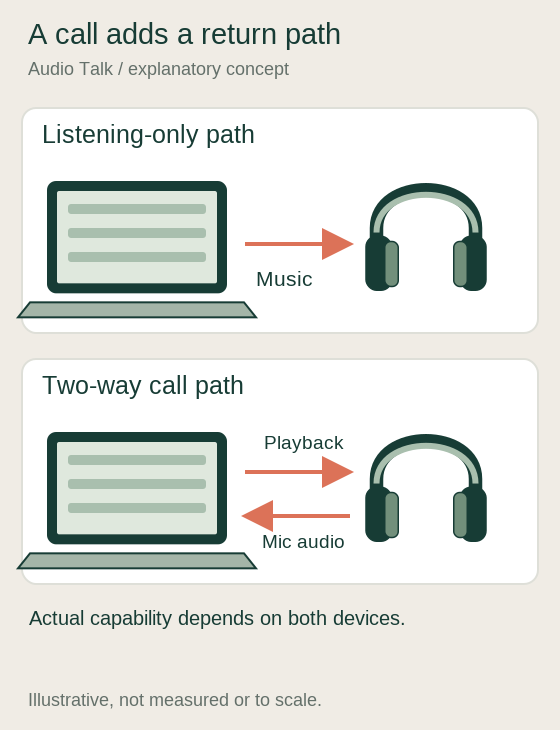
A listening-only connection carries playback toward your headphones, while a call also needs your microphone signal to travel back. Traditional Bluetooth audio can switch its operating path to provide that two-way connection, which explains why opening a recording app can change what you hear.
That doesn't mean the headphones have suddenly developed a faulty speaker. If the sound returns after the microphone-using app closes, you've learned that the change is associated with the active audio path rather than the same problem happening during every kind of playback.
Avoid the oversimplified claim that all Bluetooth calls must sound the same forever. Newer LE Audio support can change what's possible, so separate an explanation of a common traditional behavior from the capabilities of your exact computer and headset.
For an initial check, replay one familiar passage with the call app closed, then open the app and enable its microphone. Keep the listening level modest and the other settings fixed so you're testing that transition instead of three changes at once.
Read the call app's input and output choices
Open the audio settings inside the meeting or voice-chat app and identify both selections. The speaker output and microphone input can point to different devices, and the system's general sound settings don't always tell you which choices the app is currently using.
If you already have a laptop microphone or a separate compatible microphone, try selecting it as the input while keeping the headphones as output. Make a short test call or recording to check both playback and whether the other person can hear you clearly.
Treat that as a practical experiment rather than a universal fix. Some applications or device combinations may continue using the headset path, so confirm the actual result instead of assuming the name shown in one menu proves the route changed.
Remember the tradeoff: a laptop microphone can pick up the room more than the microphone you were using. Check your voice at a normal speaking distance, and consider convenience and background noise alongside the improvement you hear in playback.
On a Mac, close the apps that use the headphone mic 1
Apple recommends closing applications that use the Bluetooth headphone microphone when playback quality is reduced. Its instructions also note that having the Sound settings open can matter, so close that panel before replaying the same music passage.
Look for a recording, chat, meeting, or voice-enabled application you may have left open in the background. Finish or leave the session normally rather than changing permissions or disabling devices simply to force one test to work.
If quality doesn't recover, Apple's next check is to select the computer's internal speakers and then reselect the Bluetooth headphones. Keep the playback level low during that switch, since internal speakers and headphones can have different volume settings.
If the change persists even after those checks, describe what happened before and after closing the apps. That gives support a useful distinction between microphone-related behavior and a separate playback problem that needs further investigation.
On Windows, verify LE Audio rather than the Bluetooth number 2 3
Microsoft documents stereo playback while a microphone is active on some compatible Windows 11 LE Audio systems. Its requirements include Windows 11 version 24H2 or newer, suitable integrated hardware, supporting manufacturer drivers, and a compatible LE Audio accessory.
A product saying “Bluetooth LE” or listing a recent Bluetooth version doesn't establish that this full audio feature is available. Microsoft explicitly distinguishes general Bluetooth LE support from LE Audio support, so check the computer and headphone documentation separately.
On a supported system, the output device's sound settings can show a “Format when microphone is active” option. If that option isn't present, don't keep searching for a hidden stereo switch; review the current support requirements and contact the computer manufacturer when necessary.
Microsoft also provides a mono option for compatibility if stereo causes glitches with an accessory. Choose the setting that works reliably for your call rather than treating a format name as a promise that every device combination will behave identically.
Keep dropouts and connection problems separate
If playback cuts in and out even with the microphone unused, repeat a local audio file before making more call-specific changes. This helps distinguish the wireless playback path from a streaming or network problem that merely becomes noticeable during a meeting.
Check whether the headset is connected to another device and whether that device starts a call or notification at the same time. Multipoint behavior varies by model, so use the manufacturer's instructions to understand which connection takes priority.
Also try the computer without an unnecessary hub or extension in the path of a USB Bluetooth adapter, if your setup uses one. Treat the result as an observation about that arrangement, and avoid buying new accessories until you can name the connection you're trying to improve.
Keep a short record of the device, app, and connection used in each check. The goal is to find a repeatable trigger, not to build a long list of unrelated tweaks that makes your normal setup difficult to restore.
A cable can be useful, but inspect what it carries
A compatible wired USB headset or separate microphone can offer a different path for calls. Before borrowing or buying one, check the computer's ports, the headset's supported connection modes, and whether the microphone actually works through the proposed cable.
A charging cable doesn't necessarily turn a Bluetooth headphone into a USB audio device. Likewise, an analog cable may provide playback without carrying the built-in microphone, so identify the documented functions instead of assuming every plug keeps all wireless features.
Test a borrowed setup with the same meeting app and speaking distance when possible. Check input clarity, playback, mute controls, and comfort together, because a solution that sounds better but makes routine calls awkward may not suit your workday.
If you only make an occasional call, selecting a different existing microphone may be enough. If calls are the main job, prioritize dependable two-way audio and usable controls over a music-only specification that doesn't describe microphone behavior.
Finish with a repeatable answer or a clear support report
Your final note should identify the trigger, the selected input and output, and the adjustment that changed the result. “Music returns after closing the meeting app” gives you a practical routine even when the behavior is a documented limitation of the current connection.
If you need support, include the operating-system version, computer model, headset model, and the exact app involved. Add whether ordinary playback is affected and whether a different existing microphone changes the symptom.
Don't promise yourself that a codec toggle or software update will add capabilities the hardware doesn't support. Check the manufacturer's current documentation and change settings only where the options actually exist on your system.
Once calls and music both work predictably, save the device selections in your routine. A reliable setup you understand is more useful than repeatedly reconnecting the headset before every meeting and hoping the sound happens to stay clear.
Sources & how this guide was prepared
Audio Talk Editorial checked these primary sources on October 14, 2026. This is a research-based guide with original practical examples; it does not report our own equipment tests.
- Apple: reduced Bluetooth sound quality on Mac
- Microsoft: configure LE Audio quality on Windows 11
- Microsoft: check Windows LE Audio support
Manufacturer instructions for your exact model take priority. Read our editorial method · Photo and illustration credits