
USB-C Audio Explained: Why Some Adapters and Speakers Don’t Work
USB-C describes the connector, not every function behind it. Separate audio data, conversion, and charging before choosing an adapter or troubleshooting silent speakers.
In this guide
- A matching connector doesn't promise matching functions
- Follow a digital signal to the device that converts it
- A USB-C power port may have no audio-input job
- Verify the cable as part of the route
- Confirm the audio device is selected in the system
- Playback and microphone support are separate requirements
- Treat charging while listening as another compatibility question
- Resolve a silent setup with four concrete checks
A matching connector doesn't promise matching functions 1
USB-C is a connector shape used by products with different jobs, including data, power, and audio connections. A port or cable fitting physically doesn't by itself establish that your phone, adapter, and speaker support the same audio path.
Google's Pixel USB-C earbud instructions make the distinction explicit: the connected device needs to support USB-C digital audio, and some other devices may not support calls through that route. That is why a compatibility check should go beyond looking at the socket.
Begin with the exact model names and labels at both ends of the cable. Write down what each connection is supposed to do before you reset settings or buy a replacement that repeats the same missing function.
Follow a digital signal to the device that converts it 1 2
In a digital USB audio route, the source sends audio data to a receiving device that can convert it for playback. That receiving function can be in USB headphones, an audio adapter, or a speaker system that specifically supports USB audio input.
An active USB-C-to-analog adapter contains the conversion needed for a supported digital route to ordinary analog headphones. Check its documented host compatibility and headphone functions, because a small enclosure doesn't make the device a function-free cable.
Some products described as passive analog adapters rely on an analog-audio capability at the source. That isn't interchangeable with an active digital adapter, so use the phone or computer manufacturer's stated requirement rather than guessing that the cheaper-looking connector will behave the same way.
Apple documents its wired USB-C headphones and USB-C-to-3.5-mm adapter for compatible devices, providing a model-specific example of the supported route. Use that documentation for its listed equipment rather than treating one branded accessory as a promise about every device with USB-C.
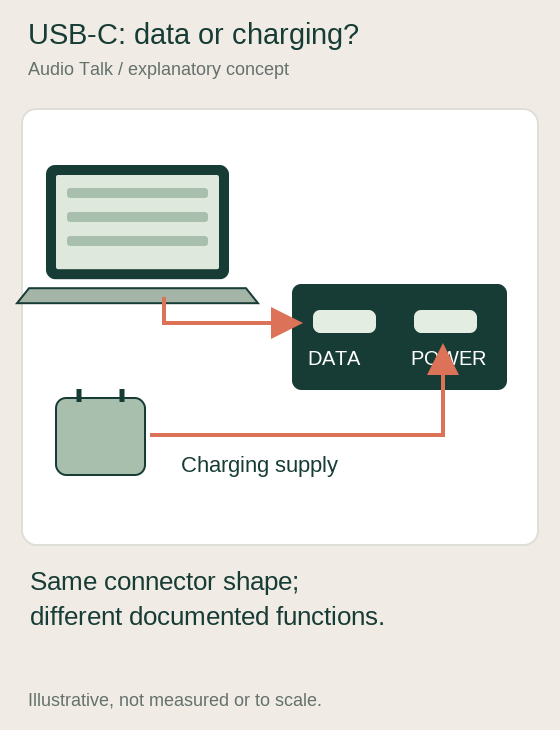
A USB-C power port may have no audio-input job 3
Read the port label and manual when a speaker or DAC has more than one USB-C socket. A socket used for charging may supply power without being the input through which the product receives your computer's music.
iFi's hip-dac 3 documentation gives a clear example of separate USB-C data and charging connections. Plugging into the charging route isn't equivalent to selecting the digital-audio input, even though the connectors have the same familiar shape.
The same question matters with speakers that accept USB power but expect their music through Bluetooth or an analog input. Confirm that USB audio is actually documented before expecting a charging cable to turn that speaker into a computer audio device.
A power light is useful evidence that something has power, but it isn't evidence that an audio-data connection has been established. Keep those checks separate so you don't spend an afternoon changing sound settings for a port with no audio-input function.
Verify the cable as part of the route
Use the supplied cable or a known-compatible cable with the data and power capabilities the product requires. A cable described only as charging may not provide the data connection needed for your intended audio arrangement.
Inspect the plugs and connections without forcing them or adding an unnecessary chain of adapters. A direct documented connection is a useful first comparison when a hub, extension, and several connectors make the route difficult to trace.
If you're using a hub, check its host connection and the function of the port you selected. A pass-through charging port and an ordinary downstream data port can look similar while serving different jobs on the same small accessory.
Keep a note of the known-working cable once the system plays correctly. That gives you a reliable reference when a new cable creates a problem later, without assuming every cable in the drawer has identical capabilities.
Confirm the audio device is selected in the system
After connecting a supported USB audio device, inspect the computer or phone's available audio outputs. Select the intended device if the system hasn't done so automatically, and check the playback application's own output choice when it offers one.
Start with a modest volume on the source and receiving device, then play a familiar local recording. That separates the basic connection check from streaming problems and reduces the chance of a loud surprise when a previously silent output starts working.
Check whether the speaker has a separate input selector that must be set to USB. A recognized device in the computer's menu doesn't prove the speaker is listening to that input when its controls still select Bluetooth or analog audio.
If the device doesn't appear, return to its power, port, cable, and host-compatibility documentation before searching for random driver downloads. Use drivers only when the manufacturer actually requires and supplies them for the model and operating system involved.
Playback and microphone support are separate requirements 1
A connection that plays music correctly may still lack the microphone or button functions you need. Google explicitly notes that some devices won't support calls with its USB-C earbuds, illustrating why successful playback doesn't settle the complete accessory question.
If calls matter, check the adapter's stated microphone support and the headset's connector wiring. A three-conductor stereo headphone plug and a headset plug with microphone contacts don't necessarily ask the accessory to do the same job.
Test the microphone input in the actual call application and identify the selected device. A laptop's built-in microphone might be handling the call while the headset provides playback, which can make an unsupported headset microphone appear to work until the surroundings change.
Include inline volume and play controls in the check when you rely on them. Compatibility for one function shouldn't be assumed to establish another, especially when you plan to move the accessory between a phone, tablet, and computer.
Treat charging while listening as another compatibility question
If you need to charge the phone and listen through a wired output at the same time, check the complete adapter arrangement. The power input, audio device, phone, and cable need documented compatibility rather than simply enough sockets on the accessory.
Don't assume a splitter sends audio through every branch or that every USB-C port can supply and receive power in the same way. Read the product's diagram and identify the specific host, charging, and audio connections before plugging in the charger.
Try the intended routine with the exact devices and a known-compatible charger, keeping the listening level modest. Notice whether playback remains reliable when charging starts, and use the manufacturer's guidance if connection changes introduce noise or interruptions.
If the combination is unclear before buying, ask support with the phone model, accessory model, and desired functions. “Charge this phone while using this wired headset microphone” is a much better question than asking whether the adapter is generally USB-C compatible.
Resolve a silent setup with four concrete checks
First, does the source support the digital or analog audio path this accessory requires? Second, is the receiving port an audio-data input rather than charging only?
Third, does the cable carry the required data? Fourth, are the system and device listening to the intended output and input?
Make one change at a time and record which step changed the behavior. If a direct connection works while the hub route doesn't, you have a defined arrangement to investigate rather than evidence that every speaker, phone, and cable is faulty.
Contact the manufacturers when the documented route still fails, including the device models, operating system, port labels, and known-working comparisons. They can address the actual compatibility question much more effectively than a description of a connector shape alone.
Once the setup works, keep the route and cable details with the equipment. Understanding the functions behind USB-C lets you choose accessories for what they do and avoid another purchase that fits the socket but misses the job.
Sources & how this guide was prepared
Audio Talk Editorial checked these primary sources on October 14, 2026. This is a research-based guide with original practical examples; it does not report our own equipment tests.
- Google: set up Pixel USB-C digital earbuds
- Apple: use wired headphones
- iFi hip-dac 3: data and charging connections
Manufacturer instructions for your exact model take priority. Read our editorial method · Photo and illustration credits