
How to Fix Hum, Buzz, and Hiss in a Desktop Audio Setup
Find where desktop audio noise enters the chain, using the equipment you already have and one small change at a time.
In this guide
- Start with a quiet, repeatable test
- Listen to the noise, then watch when it changes
- Check volume and gain before buying anything
- Separate the playback source from live inputs
- Compare charging and USB paths carefully
- Check the audio connection, not just the plug shape
- Rebuild the chain one piece at a time
- Know when faint hiss needs a different response
- Keep the result that helps you move forward
Start with a quiet, repeatable test
The quickest way to tackle desktop audio noise is to find the smallest setup that still makes it. Start with volume and gain, check the selected source and input, then compare the charging, USB, and audio cable paths one change at a time.
Before moving a plug, turn down the listening volume and switch off powered speakers or the amplifier as their manual directs. Keep headphones off your ears during connection changes, then restore a low listening level for each comparison.
Choose a familiar track and one quiet moment, such as the pause between songs, for your baseline. Note which speaker or headphone channel makes the noise and whether it happens during playback, while paused, or both.
Listen to the noise, then watch when it changes 1
Use hum for a steady, low note, buzz for a rougher electrical sound, and hiss for an airy shhh. These are useful descriptions for your notes, but their sound alone does not identify a failed component.
A buzz that changes as you move the mouse is a different clue from hiss that stays steady with the computer idle. Focusrite documents both low hum and computer activity related noise among the symptoms that can accompany grounding problems.
Try describing the pattern in plain words: left speaker only, worse while charging, unchanged by the music slider. That gives the next test a purpose and gives support something more useful than a general complaint about static.
Check volume and gain before buying anything 2 5
Take a photo of your current controls, including the music app, computer output, interface, and speaker knobs. If changing one control reduces both music and noise equally, you have made the setup quieter, but you have not necessarily improved the noise relative to the music.
Genelec explains that some source related hiss can be reduced by lowering monitor sensitivity and increasing the source level. Try this gently: lower the speaker setting first, raise the source a little, and compare at roughly the same comfortable music volume.
Avoid turning every control to maximum as a shortcut, and undo the change if louder passages sound strained or distorted. Follow your speaker manual for any input sensitivity switch, because the right setting depends on the signal arriving at that model.
Input gain on a recording interface is a separate control from playback volume, so twisting microphone gain may not change your music output at all. For a microphone you actually use, leave room for louder speech rather than trying to keep its meter near the top; Focusrite explains why excessive recording level can cause clipping.
Separate the playback source from live inputs 4
Close meeting apps and recording software for the baseline, then mute unused input monitoring in your interface software. If the noise disappears, reopen the apps individually and check which one brings it back before changing any hardware.
Confirm that music is going to the device you intend to test, especially after connecting a monitor or dock. In Windows, open Settings, System, Sound and check Output; Microsoft also points out that apps and speakers can have their own volume controls.
Replay the same troublesome passage through a second app or a different track through the original app. If the sound always occurs at the exact same moment in one recording, investigate that recording before treating it as a desk wiring problem.
If your interface has a headphone output, compare it with the speakers at a low level. Quiet headphones with noisy speakers point your next checks toward the speaker connection and speaker settings, although different outputs mean this comparison is a clue rather than a final verdict.
Compare charging and USB paths carefully 1 4
For a laptop with enough battery charge, compare the same setup briefly with its charger disconnected in the normal way. If the noise changes, record that result; it implicates the charging configuration, but does not by itself prove that the charger is defective.
Next, try a direct USB connection instead of a dock if your interface supports it, keeping the audio cables and volume settings unchanged. On a crowded desk, draw the original route first so you can restore the dock, screen, and interface without guessing.
Try another compatible USB data cable or port separately, following the interface maker's connection requirements. If removing USB also turns off a bus powered interface, the resulting silence tells you very little: an unpowered audio device cannot reproduce the original noise.
Imagine that the direct connection is quiet, but the dock becomes noisy when the external screen returns. Repeat that single change, write down the dock and screen models, and take the pattern to their support teams before ordering a replacement interface.
Check the audio connection, not just the plug shape
Read the labels and manuals at both ends of each audio cable: output on the source, input on the speakers. A connector that physically fits is not enough to establish the right signal type, and an adapter does not automatically turn an unbalanced output into a balanced one.
Where both devices support a balanced connection, use the specified balanced cable. Focusrite notes that the speaker input must also support balanced operation; buying a cable advertised as balanced cannot change the circuitry in a basic auxiliary input.
Inspect accessible cables for damage and reseat loose audio plugs with the system turned down and powered off as directed. Borrow a known working cable of the same type for one comparison, rather than adding several adapters and losing track of which change mattered.
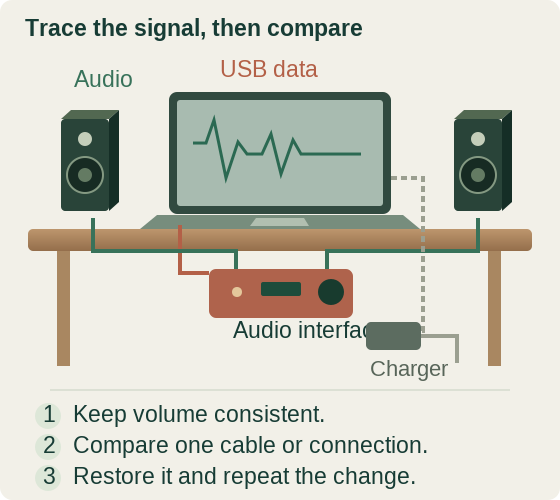
Move the audio run away from a charger brick or a bundle of power cords, without stretching connectors or blocking ventilation. Keep before and after notes, since a rearrangement that makes no repeatable difference is not a reason to keep buying cables.
Rebuild the chain one piece at a time
Now draw your listening chain from left to right: computer, DAC or interface, optional extra devices, then speakers or headphones. Put a small mark beside the charging and USB connections too, because they can be easy to forget in a sketch of the audio path.
Remove an optional device from the signal path only if the remaining devices can connect correctly according to their manuals. Compare, restore it, and repeat the change once so a temporary app mute or shifted volume knob does not masquerade as a fix.
Suppose a simple computer to speaker connection is quiet, but adding a mixer brings the buzz back. You have narrowed the question to that added connection and its settings, which is much more useful than replacing the speakers because they happen to make the sound.
Know when faint hiss needs a different response
Genelec notes that powered speakers can produce low self noise that becomes audible nearby in a very quiet room. Judge the issue from your normal chair, with your usual settings, rather than pressing an ear against the tweeter and expecting absolute silence.
If hiss remains with a speaker's signal cable disconnected, that comparison is consistent with noise generated within the speaker, but it is not proof that the level is acceptable. Ask the manufacturer about the exact model if it distracts you at your seat, has increased suddenly, or differs substantially between matching speakers.
Stop using equipment with a damaged power cord, smoke, a burning smell, or abnormal heat and arrange qualified service. Never remove a protective ground pin, use a cheater plug, or open mains powered equipment to chase an audio noise problem.
Keep the result that helps you move forward
Your useful endpoint is a repeatable observation, even if the system is not yet quiet. Send support the device models, connection sketch, control settings, noisy channel, and the one change that reliably removes or restores the noise.
Audio Talk Editorial prepared this guide from the manufacturer and platform documents listed below, using original examples to explain the troubleshooting sequence. We have not tested your equipment or these example setups, so use the steps to gather evidence and follow the instructions for your particular devices.
Sources & how this guide was prepared
Audio Talk Editorial checked these primary sources on October 14, 2026. This is a research-based guide with original practical examples; it does not report our own equipment tests.
- Focusrite: Why is there unwanted hum/noise in my monitors?
- Genelec: When I'm close to the speaker, I can hear a hissing noise, is this normal?
- JBL: 3 Series MkII Owner's Manual, English
- Microsoft: Fix sound or audio problems in Windows
- Focusrite: How high should I set the gain control on my interface?
Manufacturer instructions for your exact model take priority. Read our editorial method · Photo and illustration credits