
The best cassette-to-MP3 converter for a Mac depends on whether you want to record directly to removable storage or capture audio on a computer. ClearClick is the simplest computer-free option, while the DigitPro audio capture card is designed for Mac recording but lists support only through macOS 10.14. SEMIER and Gracioso offer direct-to-card or USB recording alternatives; check their connection and software requirements against your Mac before buying.
| Product | Best for | Mac-related consideration |
|---|---|---|
| ClearClick Cassette Tape to USB | Computer-free MP3 transfers | Records to an included USB drive without a computer |
| DigitPro USB 2.0 Audio Capture Card | Recording through a supported Mac | Lists macOS 10.7–10.14; excludes 10.15 |
| SEMIER Small Cassette Player | Direct SD-card recording or computer capture | Computer workflow uses Audacity; verify current Mac compatibility |
| Gracioso Portable Converter | Flexible USB/SD and computer recording | Computer transfer uses USB and software such as Audacity |
| KLIM K7 Cassette Player | Portable, stand-alone SD-card conversion | Does not require a computer for its stated SD-card workflow |
ClearClick Cassette Tape to USB

Best for: Mac owners who want a straightforward transfer without recording software or computer drivers. ClearClick converts cassette audio into MP3 files on a USB flash drive, and a 16 GB drive is included. The listed automatic track-splitting feature can separate tracks into individual MP3 files.
This is a practical choice when the goal is to create files first and move them to a Mac afterward. The product description says setup does not require a computer, software, or drivers, so the digitizing step does not depend on a Mac operating system version.
Why it was selected: It directly addresses a common Mac-user concern: avoiding uncertain compatibility between capture hardware and newer computer software. The included USB drive and automatic track splitting also make the workflow more self-contained.
Limitation: The listing does not describe computer-based audio editing or specify how to configure recording levels. If you want to monitor, edit, or organize audio during capture on a Mac, a computer-connected option may suit that workflow better.
DigitPro USB Audio Capture Card

Best for: Buyers who specifically want to record analog audio on a Mac that falls within the operating-system versions listed by the manufacturer. The capture card connects to a computer over USB and accepts audio through 3.5 mm or left/right RCA inputs. It is described as a way to record cassette, vinyl, or radio audio and convert it to MP3 or WAV.
Unlike a stand-alone cassette converter, this device is an audio capture interface rather than a cassette player. You need a cassette deck or another audio source with a suitable output, plus a Mac that meets the stated system requirements.
Why it was selected: Among these products, it provides the clearest stated Mac operating-system information, which helps buyers check compatibility before purchasing. Its RCA and 3.5 mm inputs also offer two connection formats for an external audio source.
Limitation: The listed Mac support is macOS 10.7 through 10.14, and the description specifically says it is not compatible with macOS 10.15. The listing does not establish support for newer macOS releases, so do not assume it will work with a current Mac.
SEMIER Small Cassette Player Converter
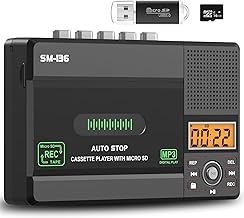
Best for: People who want a compact player with both direct SD-card recording and a computer-connected conversion method. The listing describes transferring cassette audio to an included SD card or connecting by USB and using Audacity. It also has an LCD, a speaker, a headphone jack, and a built-in microphone for recording.
The direct-to-card option may be useful when you would rather avoid recording through Mac software. If you plan to use the computer method, confirm that the device and the included software work with your particular Mac and macOS version; the product information provided does not specify Mac operating-system support.
Why it was selected: Its two conversion methods give buyers a choice between removable-storage recording and a computer workflow. The included 16 GB SD card gives the direct-recording route a stated storage medium.
Limitation: It does not support Type IV or metal tapes, according to the listing. Choose another solution if those are the tapes you need to digitize, and verify computer compatibility before relying on its USB method.
Gracioso Portable Cassette Converter

Best for: Buyers who want several recording routes: direct recording to a USB drive or SD card, or a connection to a computer for transfer with software such as Audacity. The listing says the direct-storage method works without a computer and supports FAT32-formatted USB or SD storage.
Gracioso also describes bidirectional recording, including recording digital files from USB or SD storage onto a blank cassette. Its built-in microphone and support for external microphones add voice-recording options. These features make it more flexible than a converter focused only on cassette playback and MP3 capture.
Why it was selected: The choice of removable-storage and computer-based workflows can help Mac owners adapt to their preferred setup. The direct USB/SD route is particularly relevant if you want to avoid depending on computer capture software.
Limitation: The listing does not name supported macOS versions. It recommends a USB-to-USB cable for stable computer transfer, but buyers should verify the connection requirements and software compatibility for their Mac before selecting the computer workflow.
KLIM K7 Cassette Player

Best for: Buyers who want a portable cassette player that saves MP3 conversions to removable storage without needing a computer or app for the stated transfer process. The K7 includes a 16 GB SD card and card reader, and it also plays music from an SD card. A built-in speaker, microphone, 3.5 mm headphone jack, and included earphones are listed features.
For Mac users, a stand-alone recording workflow can reduce the need to match a USB capture device to a particular macOS version. After recording, the included card reader provides a way to access the storage on a computer, subject to the Mac’s available ports and the card reader connection.
Why it was selected: It is a portable, self-contained alternative for people prioritizing SD-card conversion and listening rather than computer-based editing.
Limitation: The listing says the K7 does not record onto cassette tapes. Its stated conversion route is to SD card, so choose another product if you need a device that writes recordings back to tape.
Buying Guide: How to Choose a Cassette-to-MP3 Converter for Mac
Do you want to record directly on the Mac?
A computer-connected capture device lets you record audio into software on your Mac. That workflow can be useful if you want to monitor or edit a recording as part of the transfer. Compatibility is essential: check the exact macOS version named by the manufacturer, the required input connections, and whether the instructions specify software. The DigitPro listing, for example, names support through macOS 10.14 and excludes 10.15; it does not establish support for newer systems.
Do not treat “USB” as proof that a converter works with every Mac. USB describes a connection, not guaranteed operating-system support. Check the Mac’s ports and any adapter requirements, then verify the product’s stated system requirements before ordering.
Would you rather avoid computer compatibility concerns?
A stand-alone converter records to a USB drive or SD card, which you can then access from a computer. This separates the cassette-to-digital recording step from Mac recording software. ClearClick uses a USB flash drive and does not require a computer for setup or conversion. SEMIER, Gracioso, and KLIM list direct-to-card or removable-storage workflows.
This approach may be less suitable if you want to control recording settings or edit audio during capture on your Mac. Check whether the device creates the file format you need and how it names or separates recordings.
What connections does your cassette deck have?
A capture card needs an audio signal from a cassette player or deck. Compare the deck’s outputs with the converter’s inputs before buying. DigitPro lists both RCA left/right and 3.5 mm inputs. If you choose a portable cassette player/converter instead, the cassette mechanism is built into the device, so you do not need to connect a separate deck for playback.
Do you need automatic track splitting?
Some tapes contain multiple songs or recordings. ClearClick lists automatic track splitting into individual MP3 files. The other product descriptions provided do not make the same claim, so do not assume they separate tracks automatically. If individual files matter, check the device’s instructions and decide whether you are comfortable splitting recordings later with audio software.
What tape type and condition are you converting?
Check tape-format support before starting a large archive. SEMIER specifically says it does not support Type IV or metal tapes. The provided descriptions do not give equivalent tape-type details for every other product, so verify support with the manufacturer when the tape format is uncertain. Damaged or fragile tapes may also need careful handling; a converter cannot restore audio that is already missing or degraded.
How much storage and editing control do you need?
Included storage can make initial setup easier, but the listed capacities differ by product and storage type. SEMIER and KLIM include 16 GB SD cards; ClearClick includes a 16 GB USB drive. Consider whether you want a removable card or flash drive, and whether you will transfer files to the Mac for naming, backup, or editing. Keep an untouched copy of important recordings before making edits.
Frequently Asked Questions
Can I convert cassette tapes to MP3 on a Mac?
Yes, using either a Mac-connected audio capture device with confirmed macOS support or a stand-alone converter that records to USB or SD storage. Verify the exact operating-system requirements for any computer-connected product.
Which option avoids using Mac recording software?
ClearClick states that it records to a USB flash drive without a computer, software, or drivers. KLIM, SEMIER, and Gracioso also describe removable-storage conversion options.
Does the DigitPro capture card work with every Mac?
No such broad compatibility is stated. Its listing names macOS 10.7–10.14 and specifically excludes macOS 10.15. It does not confirm support for later macOS versions.
Do I need a separate cassette deck?
You need an external cassette source for a capture card such as DigitPro. The SEMIER, Gracioso, ClearClick, and KLIM products are described as cassette players or cassette converters with a built-in tape playback mechanism.
Can these products convert metal tapes?
SEMIER explicitly does not support Type IV or metal tapes. The provided descriptions do not specify metal-tape support for the other products, so confirm with the manufacturer before buying for those tapes.