
The simplest way to convert cassette tapes to CD is to first transfer the audio to MP3 files, then use a computer with a CD burner and suitable disc-burning software to make an audio CD. The ClearClick converter is best for direct recording to a USB drive without a computer; the DIGITNOW and Reshow players suit buyers who want a USB connection to a computer; the KLIM K7 offers standalone SD-card conversion; and the SEMIER supports both SD-card and computer-based transfer.
| Product | Best for | Transfer approach |
|---|---|---|
| ClearClick Cassette to USB | Computer-free capture | Records MP3 files to USB |
| DIGITNOW Converter | Portable USB-connected conversion | USB connection and software |
| Reshow Cassette Player | USB conversion plus everyday playback | USB connection and computer |
| KLIM K7 Cassette Player | Standalone file storage and portability | MP3 files on included SD card |
| SEMIER Cassette Converter | Two transfer methods and navigation controls | SD card or USB and software |
ClearClick Cassette to USB Converter

The ClearClick Second Generation converter is best for buyers who want to capture cassette audio without connecting a computer during the recording step. It saves cassette audio as MP3 files on a USB flash drive and includes a 16 GB USB drive.
Its stated features include instant setup without a computer, software, or drivers, plus an automatic track-splitting mode that separates tracks into individual MP3 files. This makes it a practical choice for digitizing albums or mixtapes when separate song files are useful.
- Best for: Buyers who want a standalone USB recording workflow.
- Why it stands out: Included storage and automatic track splitting reduce the need to prepare a computer before capture.
- Limitation: The listed features describe MP3 transfer to USB, not direct CD creation. A computer and CD-burning process are still needed to make a disc.
Choose this model if you prefer to capture first and organize or burn the files later. The automatic splitting feature may help, but check the resulting files before disc burning to confirm that track boundaries are suitable.
DIGITNOW Portable USB Cassette Converter

The DIGITNOW cassette converter is best for people who want a compact tape player that connects to a laptop or personal computer for MP3 capture. Its listed features say it converts cassette audio to MP3 through USB and supports using the resulting files on an MP3 player or burning them to CD.
The device includes Audacity software for converting cassette audio to digital MP3 files. It also has an audio output for headphones or another speaker system, a 3.5 mm earphone jack, and a portable design. The product information states that no installation or drivers are required.
- Best for: Buyers who want a portable cassette player and computer-connected conversion.
- Why it stands out: It combines tape playback, USB transfer, and a headphone output in one compact device.
- Limitation: Conversion relies on a computer-based workflow; the listing does not describe standalone recording to a USB drive or SD card.
Choose this model if you are comfortable working with audio software and want to monitor tapes through headphones while converting. To create a CD, transfer the finished MP3 files into a computer’s CD-burning workflow.
Reshow USB Cassette Tape Player

The Reshow cassette player is best for buyers who want to digitize tapes through a computer and also use a portable player for standard cassette playback. The listed features describe USB conversion of cassettes to MP3 and compatibility with laptops and personal computers.
For listening, the player works with standard headphones and has a 3.5 mm jack that can connect to compatible AUX inputs, including a car stereo. The product information also mentions use with laptop CD burners, which supports a computer-based route from cassette capture to disc creation.
- Best for: Buyers who value both cassette listening and computer-based MP3 conversion.
- Why it stands out: It offers a portable player with headphone and AUX connection options alongside USB conversion.
- Limitation: The listing does not specify included storage or automatic track splitting, so plan to manage and organize the captured files on a computer.
Choose Reshow if you want to play tapes through headphones or a compatible AUX input as well as digitize them. Avoid choosing it solely for standalone conversion if you do not want to use a computer.
KLIM K7 Cassette Player and MP3 Converter

The KLIM K7 is best for buyers who want to convert tapes to MP3 files without a computer or app during the conversion process. It includes a 16 GB SD card and an SD card reader, and the listed instructions describe saving converted files to the card.
Beyond conversion, the K7 works as an SD-card music player. It has a built-in speaker and microphone, a 3.5 mm earphone jack, and included earphones. Its microphone can record voice or other sounds to the SD card. The listing clarifies that it does not record onto cassette tapes.
- Best for: Buyers who want a portable, standalone cassette-to-SD workflow.
- Why it stands out: Included storage and a card reader provide a straightforward route for moving MP3 files to a computer later.
- Limitation: It saves files to an SD card rather than directly to a CD. A computer is still needed to transfer the files and burn a disc.
Choose the K7 if avoiding computer setup during tape capture matters most. Once conversion is complete, use the card reader to move the MP3 files to a computer, then prepare an audio CD using compatible disc-burning tools.
SEMIER Cassette Converter With SD and USB
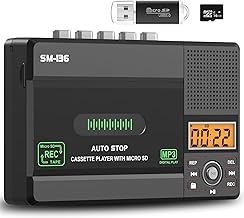
The SEMIER cassette converter is best for buyers who want a choice between recording MP3 files to an SD card and transferring audio through USB with Audacity. The listing says an SD card is included and describes both conversion methods.
The compact player has an LCD for navigation, a speaker, a headphone jack, and a built-in microphone for recording. It also supports SD-card music playback. The feature list specifies support for Type I tapes and says the device does not support Type IV or metal tapes.
- Best for: Buyers who want two stated conversion methods and an LCD for navigating recordings.
- Why it stands out: The SD-card option can avoid a computer during capture, while USB and Audacity provide an alternative computer-based workflow.
- Limitation: It is not suitable for Type IV or metal tapes according to the product listing.
Choose SEMIER if your tapes are Type I and you want flexibility in how to save files. Check tape type before buying; its stated format limitation is important for collections that include metal or Type IV cassettes.
Buying Guide: How to Convert Cassette Tapes to CD
These products convert cassette audio into digital files; none of the supplied product descriptions states that it creates a CD directly. The usual process has two stages: record the cassette as a digital audio file, then use a computer and CD-burning setup to create a disc. Keeping these stages separate makes it easier to compare converters and identify the equipment needed for the final result.
Do you want computer-free capture or computer-based control?
A standalone converter saves recordings to removable storage, which you can transfer to a computer later. ClearClick records to a USB flash drive, while the KLIM K7 and SEMIER support SD-card workflows. These options are useful when you do not want a computer beside the tape player during recording.
USB-connected models such as DIGITNOW and Reshow are better suited to buyers who plan to use a computer as part of the conversion process. The DIGITNOW product information references Audacity; SEMIER also lists USB transfer using Audacity. Confirm the included software and instructions before beginning, since the computer workflow can differ by device.
How will you turn MP3 files into an audio CD?
After capturing the tape, move the MP3 files to a computer if they are not already there. Use a computer with a CD burner and disc-burning software that can create an audio CD. A data CD containing MP3 files is different from an audio CD: confirm which format the intended CD player supports before burning.
For an audio CD, check the software’s audio CD or music-disc option rather than assuming that copying files to a blank disc will create the right format. Follow the software’s prompts, review the track order, and keep the original digital files as a backup.
Will the converter support your cassette tapes?
Check tape type when the product specifies a limitation. SEMIER states that it supports Type I tapes and does not support Type IV or metal tapes. The other supplied product descriptions do not provide comparable tape-type details, so do not assume compatibility beyond what their listings state.
Also inspect the condition of important tapes before conversion. If a tape is damaged or plays inconsistently, a conversion device cannot guarantee a clean recording. Handle valuable recordings carefully and consider testing the workflow with a less important cassette first.
Do you need separate files for each song?
Track separation affects how easy a finished collection is to browse and burn. ClearClick lists automatic track splitting, which is intended to separate tracks into individual MP3 files. The other product descriptions do not state that they automatically detect song boundaries. With those models, plan to review the recording and separate tracks using suitable software if individual files are needed.
Automatic splitting may not match every pause or transition exactly. Listen to the resulting files before burning a disc, especially when tracks run together or when a live recording contains quiet passages between songs.
Which features matter for listening as well as conversion?
If you also want to listen to tapes, compare headphone, speaker, and AUX options. DIGITNOW lists a 3.5 mm headphone output; Reshow describes headphone use and a 3.5 mm AUX connection; KLIM K7 includes a speaker, headphone jack, and earphones; SEMIER lists a speaker and headphone jack. The ClearClick feature list focuses on USB recording rather than portable playback features.
For portability, consider whether you want to carry removable storage, use a headphone output, or listen through a built-in speaker. Do not treat a listening feature as proof of a particular conversion quality; the provided product details do not establish comparative sound performance.
Frequently Asked Questions
Can I convert a cassette tape directly to a CD?
The listed products capture cassette audio as MP3 files, not directly as CDs. Transfer the MP3 files to a computer and use a CD burner and suitable software to create an audio CD.
Which cassette converter works without a computer during recording?
ClearClick records MP3 files to a USB flash drive without a computer, software, or drivers according to its listed features. KLIM K7 and SEMIER also describe SD-card conversion workflows.
Can MP3 files be burned as an audio CD?
Yes, if you use computer software that can create an audio CD and a computer with a CD burner. Choose the audio CD format when needed; simply copying MP3 files to a disc may create a data disc instead.
Which option lists automatic track splitting?
ClearClick lists an automatic track-splitting feature that separates tracks into individual MP3 files. The other supplied product descriptions do not specify automatic splitting.
Does the SEMIER converter work with metal tapes?
No. Its listed features say it does not support Type IV or metal tapes and specify support for Type I tapes.
What should I do with the digital files after conversion?
Check playback, organize the tracks, and keep a backup before burning a disc. If using an SD card or USB drive, transfer the files to a computer with the card reader or storage connection described for the selected device.