
The simplest way to record cassettes to CD is to convert the tape audio into MP3 files, then use a computer with a disc-burning drive and CD-burning software to create an audio CD. The products below capture cassette audio to an SD card, USB drive, or computer; none is described as a standalone CD burner. The KLIM K7 32GB is best for direct SD-card conversion, while the DIGITNOW model is suited to computer-based capture and the music digitizer works with a separate cassette player.
| Product | Best suited for | Capture method |
|---|---|---|
| KLIM K7, 32GB | Computer-free tape conversion | SD card |
| DIGITNOW USB cassette player | Capturing to a computer | USB and software |
| Music Digitizer recorder | Using a cassette player you already own | USB drive or SD card |
| SEMIER cassette converter | Choosing between SD-card and computer capture | SD card or USB |
| KLIM K7, 16GB | Portable conversion and playback | SD card |
KLIM K7 Cassette Player With 32GB SD Card

Best for: People who want to convert tapes directly to MP3 files on an included SD card without connecting a computer during capture.
The KLIM K7 records cassette audio as MP3 files onto the included 32GB SD card. Its product details say that conversion does not require additional devices or app downloads; users follow the manual to save the files. The player also plays music from the SD card and includes a built-in speaker, microphone, and 3.5mm headphone jack with earphones.
This model is a practical choice when the goal is to digitize tapes first and make a CD later. Transfer the resulting files to a computer, then use CD-burning software to create a disc. The included storage card gives the conversion process a simple destination, while the recorder’s standalone operation can reduce the number of devices needed at the capture stage.
Limitation: The listing says the device does not record onto cassette tapes, and it does not describe a built-in CD burner. A computer and suitable disc-burning setup are still needed to make CDs.
DIGITNOW USB Cassette-to-MP3 Player

Best for: Buyers who want to capture cassette audio on a laptop or desktop and manage the resulting files before burning a CD.
This portable cassette player connects to a computer by USB and is described as a way to convert tapes into MP3 files. The listing mentions Audacity software for converting the audio and says no driver installation is required. It also has a 3.5mm audio output and includes earphones, so users can listen through headphones or another speaker system.
Choose this model if computer-based capture fits your workflow. Saving the audio on a computer makes it convenient to organize tracks, edit files, and prepare them for disc burning. The product description specifically presents MP3 files as suitable for later playback on an MP3 player or burning to CD.
Limitation: The listing describes USB capture to a computer, not direct recording to an SD card or a built-in CD burner. You need a computer for the stated conversion workflow, and the product details do not specify the computer’s operating-system requirements.
Music Digitizer With 3.5mm and RCA Inputs

Best for: People who already own a cassette player with a 3.5mm or RCA audio output and want to record without a computer during capture.
This recorder accepts audio through 3.5mm or RCA inputs and saves it as MP3 files to a USB flash drive or SD card. Its listing identifies cassette players as one of the supported audio sources, alongside other devices with compatible audio outputs. The device can play back saved MP3 files, and a headphone connection lets users listen while recording.
Choose this option if you have a working tape player and want a separate capture device. It can also suit households digitizing audio from more than one source, since the listing describes support for multiple kinds of equipment with the specified outputs. The stated MP3 format can be transferred to a computer for organization and CD creation.
Limitations: A cassette player is not included in the supplied product details, so this is not an all-in-one tape player solution. The recorder supports up to 32GB, requires FAT32 formatting, does not support NTFS, and should not have an SD card and USB flash drive inserted at the same time. Its listed recording format is 128 Kbps, 44.1 kHz dual-mono.
SEMIER Cassette Converter With Two Capture Options
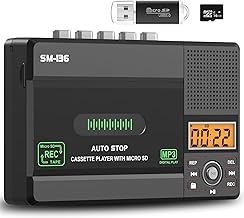
Best for: Buyers who want the option to convert directly to an SD card or capture through a USB connection and software.
The SEMIER player supports two stated cassette-to-MP3 workflows: saving files to the included SD card or connecting by USB and using Audacity. It also plays tapes and SD-card music, and includes a built-in microphone and speaker. An LCD is provided for navigating and controlling recordings. The listing gives its dimensions as 6.3 by 3.9 by 1.2 inches and its weight as 0.52 pounds.
This is a flexible pick if you want to choose between standalone card storage and computer-based conversion. For CD creation, either method can provide digital files to transfer or prepare on a computer. The combination of playback, recording, and two conversion methods makes it relevant to people who are still deciding how they want to digitize their collection.
Limitation: The product is specified for Type I tapes and does not support Type IV or metal tapes. Check the tape type before choosing it, particularly if the collection includes specialty or metal formulations.
KLIM K7 Cassette Player With 16GB SD Card

Best for: People who want a portable cassette-to-MP3 player with included storage for a smaller or staged digitization project.
This KLIM K7 model converts cassette audio to MP3 files saved on its included 16GB SD card. It is also described as an SD-card music player and includes an SD card reader. The device has a built-in microphone and speaker, a 3.5mm headphone jack, and included earphones. The listing says no extra devices or app downloads are needed for tape-to-MP3 conversion.
Choose this model if portability and an uncomplicated card-based process matter more than having the largest included storage capacity among the two KLIM options here. It can be a straightforward way to digitize tapes and listen to the saved files before transferring them to a computer for CD burning.
Limitation: The included card is 16GB, compared with the 32GB card supplied with the other KLIM K7 listed here. The product details also say it cannot record onto cassette tapes and do not identify a CD-burning function.
Buying Guide: How to Record Cassettes to CD
What equipment do you need to make a CD from a cassette?
Most buyers need a cassette player or cassette-to-digital converter, a way to store or transfer the captured audio, a computer, CD-burning software, and a computer drive capable of writing CDs. The products in this guide capture audio as MP3 files or provide a way to do so. Their supplied details do not identify them as standalone CD recorders.
The basic process is to play the tape while recording its audio digitally, check the saved files, transfer them to a computer if necessary, and create an audio CD using compatible software and a disc-writing drive. Confirm that your computer can write to the type of blank disc you intend to use. A computer with no disc-writing drive may require a separate compatible drive.
Should you choose an SD card, USB drive, or computer capture?
SD-card capture is useful if you want the converter to save files without a computer connected during recording. The two KLIM models and the SEMIER player list SD-card conversion. Check the included card capacity and any stated card-format requirements.
USB-to-computer capture is a better fit if you want the audio to go directly into a computer workflow. The DIGITNOW player and SEMIER model describe USB conversion with Audacity. Computer capture can make file organization and preparation for CD burning more immediate, but it depends on having a suitable computer and software setup.
Separate audio capture suits people who already have a cassette player with the appropriate output. The Music Digitizer accepts 3.5mm or RCA input and saves MP3s to a USB drive or SD card. Check your player’s available outputs before selecting this route.
How much storage should you look for?
Storage needs depend on the number of tapes, recording length, and file settings. The product details list a 16GB card with one KLIM model and a 32GB card with the other. The Music Digitizer supports storage up to 32GB and says a typical 60-minute recording is about 50MB, but that estimate applies to its stated recording setup. Do not assume every converter creates files of the same size.
If you plan to digitize a large collection, transfer files to a computer or another suitable storage location as you work. Keep an organized copy before burning discs so you can make another CD if needed. For the Music Digitizer, follow its stated FAT32 requirement and do not insert an SD card and USB drive simultaneously.
Do tape types and audio connections matter?
Yes. The SEMIER listing explicitly says it supports Type I tapes but not Type IV or metal tapes. Check the tape formats in your collection against the product’s stated support before buying. For a separate recorder such as the Music Digitizer, make sure the cassette player has a compatible 3.5mm or RCA output and that you have the necessary connection method.
Also consider how you want to monitor playback. Some products list a headphone jack, earphones, or a built-in speaker. Listening during capture can help identify interruptions or playback problems, although it does not guarantee that an old tape will play cleanly.
What should you check before burning the CD?
Listen to the captured files and confirm that each recording is complete and saved in a format your CD-burning software can use. MP3 files can be used to prepare an audio CD with suitable software, but the exact steps depend on the computer and program. Check track order, remove accidental silence or unwanted segments if desired, and retain the original digital files as a backup.
Do not confuse a data CD containing MP3 files with an audio CD. An audio CD is generally the intended format when the goal is playback in a conventional CD player; a data disc stores files and playback depends on whether the device supports them. Choose the disc project type in the burning software based on the player you plan to use.
Frequently Asked Questions
Can these products record cassette tapes directly to a CD?
The listed product details describe converting cassette audio to MP3 files or capturing audio to a storage device or computer. They do not describe a built-in CD burner. To make a CD, transfer the files to a computer and use compatible CD-burning software and a disc-writing drive.
Can I burn MP3 files as an audio CD?
Yes, if your CD-burning software supports creating an audio CD from MP3 files. Select the audio CD option rather than simply copying the MP3 files as data, especially if the finished disc is meant for a conventional CD player.
Which option does not require a computer during cassette capture?
The KLIM K7 models and the SEMIER converter list conversion to an SD card without requiring a computer for that capture step. You will still generally need a computer or another suitable CD-burning setup to create a CD from the saved files.
Which product is useful if I already own a cassette player?
The Music Digitizer is the clearest match if your cassette player has a 3.5mm or RCA audio output. It records input audio as MP3 files to a USB flash drive or SD card. Check the player’s output and the recorder’s storage requirements before use.
Will the SEMIER converter play metal tapes?
The supplied product details say the SEMIER converter does not support Type IV or metal tapes. It is specified for Type I tapes, so choose a different supported playback setup for tapes outside that stated format.